 Xtractor
Manual entry from 1,000 order confirmation emails can cost a small bookkeeping team more than 10 hours a month. An email parser is a data-extraction tool that pulls structured fields from email text and exports them into Google Sheets, CSV, or Excel. Xtractor.app is an email parsing and data-extraction tool that imports thousands of emails in a single action or on a schedule, extracts fields like sender, date, amounts, and order numbers, and outputs a clean table for reporting and bookkeeping. This beginner’s guide shows what an email parser does, how parsing works, and a step-by-step setup to parse emails to spreadsheets for bookkeeping and automation. See our practical setup in Creating an Email Parser and the core concepts in What is Email Parsing?. Curious which email formats cause the biggest headaches and how to fix them?
What is an email parser and how does email parsing work?
An email parser is a software tool that extracts predefined data fields from incoming emails and converts them into tabular output for spreadsheets or databases. It works by collecting messages, applying template-based rules or AI-assisted extraction, validating results, and exporting rows to destinations like Google Sheets, CSV, or Excel.
Structured vs unstructured parsing 📄
Structured parsing is a rule-based method that extracts fixed fields from predictable email templates. For example, an invoice notification with the same layout each month lets you map “Invoice number,” “Date,” and “Total” to columns with a single template. Unstructured parsing is an inference-based method that extracts values from variable text using flexible rules or AI. A support-ticket email that uses freeform language needs keyword matching, contextual rules, or AI parsing to find customer IDs or issue categories.
For small accounting firms that receive consistent vendor invoices, structured parsing reduces manual work and errors by using saved templates. For eCommerce shops receiving dozens of different order confirmations from marketplaces, unstructured parsing or multiple templates handles variation without losing data. xtractor.app supports both approaches by letting you create multiple parsing contexts and saved templates to match either predictable or variable email streams. For a deeper technical walkthrough, see What is Email Parsing? Email Parsing: Revolutionizing Data Extraction. Xtractor.
Core components: collection, parsing, and export ⚙️
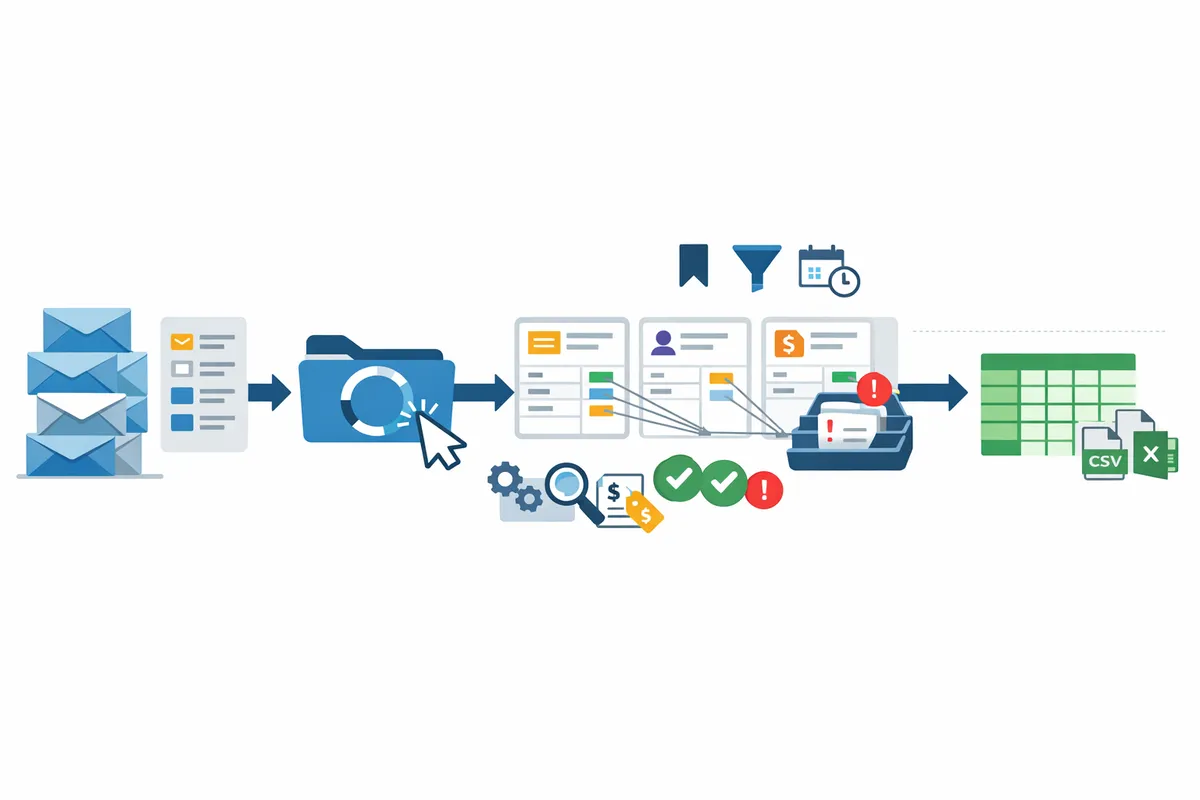
A typical parsing workflow has three components: collection, parsing, and export. Collection is the ingestion step that gathers emails from an inbox, bulk import, or scheduled sync. Parsing is the extraction step that applies templates, conditional filters, or AI rules to pull fields into structured rows. Export is the delivery step that writes parsed records to a destination such as Google Sheets, CSV, or Excel.
Follow this checklist to picture the flow:
- Gather messages. (one-click bulk import or scheduled sync)
- Filter and route. (by sender, subject, or date)
- Apply parsing contexts. (template-based or AI-assisted)
- Validate and map fields. (preview extracted columns)
- Export to destination. (Google Sheets, CSV, Excel)
xtractor.app handles steps 1–5 with one-click bulk imports, scheduling, and direct export to Google Sheets. If you want a step-by-step setup that maps email fields to a spreadsheet, try Email Parser to Google Sheets: Fast Setup, Bulk Imports, and Scheduling (Step‑by‑Step).
Common use cases for small businesses 📦
Small businesses use email parsers for invoice capture, order processing, lead enrichment, and support-ticket routing. For example:
- Invoice capture for a bookkeeping firm. Fields: vendor, invoice number, date, subtotal, tax, total. Benefit: daily imports allow faster month-end reconciliation and fewer transcription errors.
- Order processing for an online store. Fields: order ID, buyer email, sku, quantity, total. Benefit: reduce manual order entry time and speed up fulfillment.
- Lead enrichment for marketing teams. Fields: contact name, company, phone, lead source. Benefit: auto-populate CRM rows for faster follow-up.
- Support-ticket routing. Fields: ticket ID, customer email, priority, product. Benefit: route tickets to the right queue and reduce SLA breaches.
xtractor.app makes these use cases practical for SMBs by importing thousands of emails at once, applying multiple parsing contexts, and exporting clean tables ready for reporting or bookkeeping. For an implementation blueprint, see Creating an Email Parser; Build Your Own Email Parser: A Practical Guide. Xtractor.
Handling variable formats and attachments 📎
Parsers handle variable formats by using multiple parsing contexts, saved templates, and conditional filters, while attachments usually require separate parsing steps. If a vendor sends three different invoice layouts, set up three templates and a sender-based filter so each email uses the correct context. If email bodies include attachments (PDFs, images), note that attachments require custom parsing logic or OCR and are not parsed by default.
xtractor.app does not parse attachments in the default plan but offers custom attachment parsing on request and can create specialized plans for high-volume or complex formats. Expect the following when you need attachment handling:
- Extra setup time to define attachment rules and validation.
- Potential additional cost for OCR and custom templates.
- Governance steps: saved searches, error queues, and scheduled re-runs to catch failed parses.
💡 Tip: Use sender and subject filters to limit parsing to relevant messages and reduce false positives.
How do I set up an email parser and parse emails to spreadsheet?
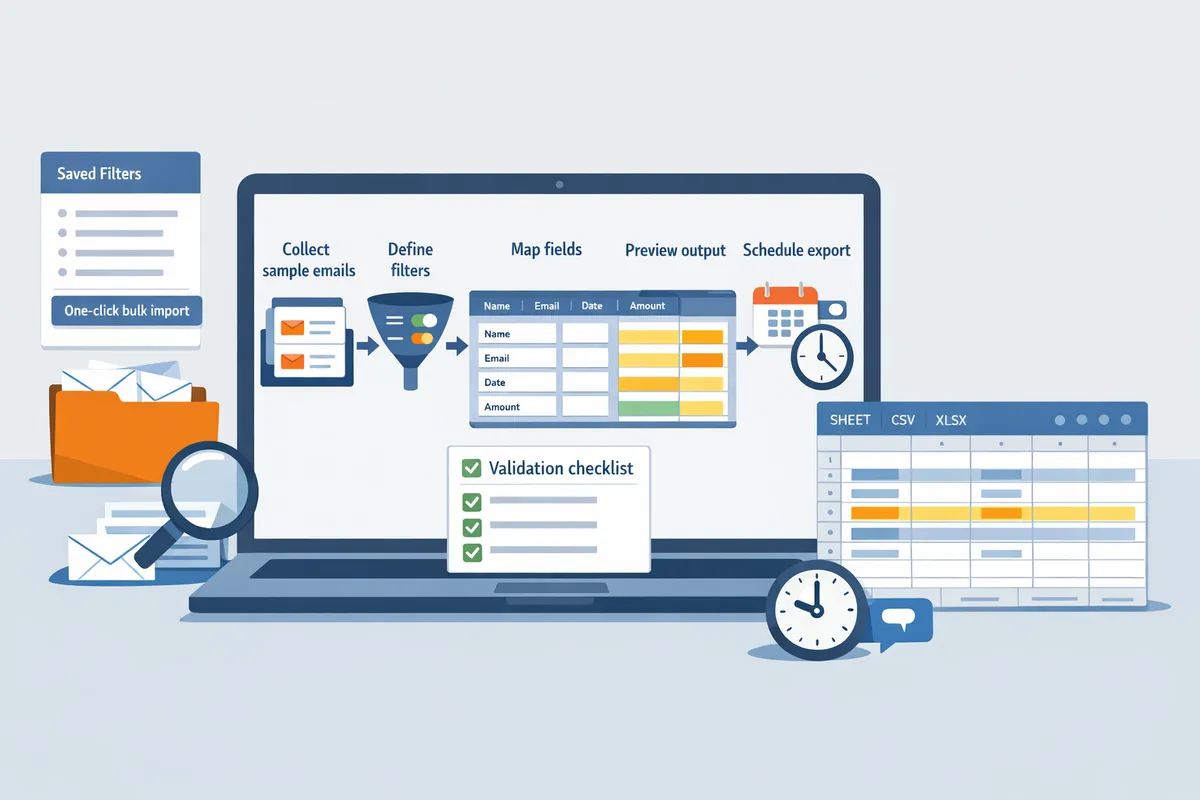
Set up an email parser by collecting representative emails, creating extraction filters that target reliable anchors, mapping parsed fields to spreadsheet columns, scheduling exports, and validating results through test runs. This section shows a practical, step-by-step path: pick the right tool, prepare samples, build the parser in xtractor.app, schedule exports to Google Sheets/CSV/Excel, and run a validation checklist before you rely on the output.
Choosing between DIY, marketplace tools, and xtractor.app 🔍
Choose a path based on email volume, format variability, and compliance needs: DIY for tiny, uniform volumes; marketplace tools for many template options; xtractor.app for fast bulk imports, scheduling, and governance. DIY tools save licensing cost but require manual setup and ongoing maintenance, which costs time if formats drift. Marketplace parsers offer many templates but can still miss edge cases and usually need extra connectors to reach Google Sheets. Our website recommends xtractor.app when teams want one-click bulk imports and native Google Sheets export to cut setup time and reduce audit friction. According to xtractor.app, saved searches and contexts reduce recurring false captures by reusing filters and templates.
See our step-by-step build guide for more on when to choose a managed tool: Creating an Email Parser: A Practical Guide.
Preparing email samples and designing extraction filters ✂️
Prepare a sample set of 50–200 representative emails and identify reliable anchors like labels, punctuation, or repeating phrases to design accurate extraction filters. Start by exporting or tagging emails from the last 30–90 days that include every format variant you receive. Example: for Shopify order confirmations, choose samples that show both “Order #12345” lines and alternate lines like “Order ID: 12345” so you can build two contexts. Create saved searches that filter by sender, subject keywords, or date range to limit noise; for example, “from:orders@shopify.com subject:order”.
When you spot ambiguous phrases, prefer surrounding anchors (e.g., the word “Total” before an amount) rather than relying on position alone. For more on structured vs unstructured extraction, see What is Email Parsing? Email Parsing: Revolutionizing Data Extraction.
Building a parser in xtractor.app: bulk import, contexts, and saved searches ⚡
Build a parser in xtractor.app by bulk importing sample emails, adding parsing contexts for each format variant, mapping fields to column names, and previewing results before saving. Parsing context is a configuration that handles one email format variant so you can manage multiple templates in one parser. Minimal setup sequence:
- Bulk import samples or point xtractor.app at a saved search to pull matching messages.
- Create a parsing context for the most common template.
- Define extraction filters for each field (order number, date, amount, customer email).
- Add a second context for alternate templates (for example, Stripe receipts vs Shopify confirmations).
- Map each extracted field to a spreadsheet column name and preview 50–100 parsed rows.
- Save the parser and store the saved search for reuse.
Xtractor.app shows a live preview so you can correct anchors before scheduling. For a full walkthrough on mapping fields to Google Sheets, see Email Parser to Google Sheets: Fast Setup, Bulk Imports, and Scheduling (Step‑by‑Step).
Scheduling, exports, and mapping to Google Sheets/CSV/Excel 🗓️
Schedule exports in xtractor.app to run daily or ad hoc and map parsed fields directly into Google Sheets, CSV, or Excel columns for automated reporting. When you configure an export, set these items explicitly:
- Destination and authentication (connect the Google account or choose CSV/Excel export).
- Column mapping (exact spreadsheet header names to parsed field keys).
- Run cadence (one-off, hourly, daily) and whether to append or overwrite.
- Naming conventions (use descriptive sheet names like orders_YYYY-MM-DD and stable column headers).
For incremental runs, enable the incremental option so xtractor.app only adds new rows since the last run. Example practical rule: format dates as YYYY-MM-DD and ensure amounts use a single currency column to avoid downstream pivot-table errors. See our Google Sheets export guide for template examples.
Testing, validation, and basic error handling ✅
Validate parsing results with controlled test runs, a spot sample of at least 100 messages, and a clear missing-value threshold to catch errors before you rely on the data. Use this checklist during validation:
- Sample size: test on 100 messages that include every known format variant.
- Missing-value rate: aim for a business-agreed threshold (for example, under 5% for critical fields like amount).
- Spot-check rules: randomly inspect 10% of parsed rows and compare three fields (order number, date, amount) to the original email.
- Boundary cases: include very short emails, long receipts, and emails with extra formatting (HTML vs plain text).
- Exceptions view: save a search for failed extractions and review it daily for the first two weeks.
💡 Tip: Create an “exceptions” saved search in xtractor.app that captures emails where required fields are empty. Review that list daily until the parser reaches your target reliability.
If attachments are present and critical to the workflow, note that attachments are not included in xtractor.app’s default plan and require a custom parsing request. Use saved searches and alerts to catch format drift and update parsing contexts when a new template appears.
How should small businesses compare email parsers and plan next steps?
Small businesses should compare parsers on accuracy, attachment handling, integrations, scheduling, security, and total cost of ownership. These criteria determine how quickly you replace manual entry, how much remediation you must budget for, and whether the tool fits compliance needs. The checklist and roadmap below help you run a low-risk pilot and choose between an out-of-the-box plan or a custom parsing engagement with xtractor.app.
Feature comparison table (xtractor.app and competitors) 📊
A side-by-side table helps you compare accuracy approach, attachment support, multi-language handling, scheduling, API/webhook access, data retention, and price tiers at a glance. Below is a recommended apples-to-apples table you can copy into a procurement checklist.
| Feature / Product | xtractor.app | Mailparser.io | Parseur | Zapier Email Parser | Mailgun |
|---|---|---|---|---|---|
| Accuracy approach | Template-based with multiple parsing contexts and visual validation | Template-based plus rule editor | Template + AI-assisted templates | Simple rule-based, best for single-field captures | Delivery-focused parsing via webhooks and routing |
| Attachment support (PDF, CSV, images) | Not included by default; custom parsing available on request | Attachment parsing supported (check plan specifics) | Attachment parsing supported (PDF-focused workflows) | No native attachment parsing | Attachments passed via webhook; parsing requires extra tooling |
| Multi-language support | Supports multiple languages in text fields via flexible anchors | Varies by rule complexity | Offers multi-language parsing tools | Limited by simple rules | Depends on downstream processing |
| Scheduling / Bulk import | One-click bulk import and scheduled imports to sheets | Scheduled inbox processing | Scheduling and batch processing | Only processes forwarded messages; limited scheduling | Inbound routing; scheduling requires external jobs |
| API / Webhook access | Direct exports to Google Sheets, CSV, and webhook support | API and webhooks available | API + webhooks | Webhook output only | Strong webhook and API features |
| Data retention & export | Configurable exports to Sheets/CSV/Excel; retention policies documented per plan | Retention varies by plan | Retention varies by plan | Minimal retention; designed for quick forwarding | Retention and logs per account settings |
| Typical price tiers | Small, mid, custom enterprise plans (custom plans for attachments) | Free tier + paid tiers | Free trial + paid tiers | Free plan; limited features | Developer-focused tiers |
Use this table to score vendors on the attributes that matter to your workflow (accuracy, attachments, and downstream integration). For a deeper buyer-side comparison read our Email Parsing Service overview and check the step-by-step setup in Creating an Email Parser: A Practical Guide.
Security, privacy, and compliance checklist 🔒
Evaluate encryption, retention, ownership, and regional compliance controls before routing inbox data to a parser. Ask vendors clear, documentable questions and keep a written record of answers for audits.
- Encryption in transit and at rest. Ask for encryption standards and where keys are stored.
- Data retention and deletion policy. Ask how long raw emails and parsed outputs are retained and the deletion workflow.
- Data ownership and export rights. Ask if you can export all raw and parsed data anytime and whether the vendor claims any derivative rights.
- GDPR/CCPA controls. Ask about data subject request handling, data portability, and subprocessors list.
- Access controls and audit logs. Ask for role-based access, SSO support, and change logs for parsing rules.
Practical vendor questions to copy into an RFP:
- Where are customer data and backups geographically stored?
- Do you provide a Data Processing Agreement and support custom DPA clauses?
- How do you delete data on contract termination?
- Can we limit retention of raw emails while keeping parsed exports for reporting?
⚠️ Warning: Do not send sensitive health or regulated personal data to a parser without a signed DPA and documented technical safeguards.
Xtractor.app documents support and custom plans for compliance-sensitive clients and can provide tailored retention and deletion terms on request.
Advanced workflows and integrations (Zapier, webhooks, Google Sheets) 🔗
Advanced setups combine saved searches, webhooks, Zapier connectors, and direct Google Sheets exports to automate downstream tasks and reporting. These workflows reduce manual reconciliation and speed up daily reporting cycles.
Common workflow sketches:
- Email → xtractor.app (saved search) → Google Sheet → Accounting import. Example: nightly scheduled import of order confirmation emails populates a sheet that your accounting app ingests every morning.
- Email → xtractor.app → Webhook → Zapier → CRM. Example: lead emails parsed into name, email, and source fields then pushed to CRM with enrichment steps in Zapier.
- Email with attachments → xtractor.app (custom plan for attachments) → CSV export → ERP. Example: PDF invoices parsed via a managed parsing engagement, exported to CSV, and matched in the ERP.
xtractor.app supports one-click bulk import, saved searches to target specific senders or subjects, scheduled imports, and direct export to Google Sheets. For a walkthrough of mapping parsed fields into a sheet, see Email Parser to Google Sheets: Fast Setup, Bulk Imports, and Scheduling (Step‑by‑Step).
When to request custom parsing or a managed plan 🧩
Request custom parsing when emails contain complex attachments, PDFs, embedded tables, or highly variable templates that standard templates cannot capture reliably. Custom parsing reduces manual reconciliation and audit exceptions but costs more upfront.
Business trade-offs to evaluate:
- Cost vs. time. A custom plan increases setup cost but eliminates repeated manual fixes that cost staff hours every month.
- Audit and compliance risk. Custom parsing can include validation rules and error reports that reduce audit exceptions during financial close.
- Onboarding speed. Managed parsing shortens time to reliable outputs because the vendor tunes rules against your sample set.
Example: An eCommerce seller with 10 different supplier invoice formats and embedded PDF receipts will spend hours reconciling mismatches monthly. Requesting a custom parsing engagement from xtractor.app reduces that recurring workload and provides documented rule changes for auditors.
Implementation roadmap and governance checklist 🗺️
A phased roadmap and a short governance checklist keep pilots small, measurable, and auditable. Follow the steps below and assign clear owners.
- Sample collection. Gather 50–200 representative emails across senders, date ranges, and formats. Include edge cases and attachments.
- Pilot parsing. Configure 3–6 key fields (order number, amount, date, sender). Run a 2-week pilot on historical and incoming emails.
- Validation and error-handling. Measure extraction accuracy and log all failed parses. Set an acceptable error threshold (for example, under 5% after rule tuning).
- Scheduled rollout. Move parsing to scheduled daily imports once the pilot meets thresholds. Use saved searches to scope who is processed automatically.
- Monitoring and alerts. Configure daily validation checks and alerts for parsing failure spikes. Keep an audit log of rule changes.
- Periodic review. Quarterly review of parsing accuracy, new templates, and retention settings.
Governance checklist (copy into your runbook):
- Assigned owner for parser rules and vendor contacts.
- Validation frequency and success threshold.
- Retention policy for raw emails vs. parsed exports.
- Change-control steps for parsing rule updates (review, test, sign-off).
- Escalation path for data incidents.
If you plan a DIY route, our Creating an Email Parser guide covers the technical steps and when to choose a managed option. For open-source approaches and comparisons, see our Open Source Email Parser and Free Email Parser pages.
Frequently Asked Questions
This FAQ answers common beginner and buyer questions about email parsers, covering definitions, accuracy, security, exports, and how xtractor.app handles attachments and scheduling. Use the linked guides for step-by-step setup, advanced templates, and export workflows.
What is an email parser?
An email parser is a software tool that extracts defined pieces of text from incoming emails and converts them into structured fields for spreadsheets, databases, or APIs. For example, a parser can pull order numbers, amounts, sender addresses, and dates into columns for bookkeeping. See our overview of what email parsing does and when to use it in our What is Email Parsing? guide. Our xtractor.app maps those extracted fields directly to Google Sheets, CSV, or Excel so teams stop copying and pasting.
How does email parsing work?
Email parsing works by locating reliable anchors or patterns in email content and capturing adjacent values using templates, rule sets, or AI models. Typical steps include collecting representative emails, creating extraction rules or templates, mapping parsed fields to an output, and running validation batches. Follow our Creating an Email Parser guide for a step-by-step workflow and examples of template-based versus AI-assisted extraction. xtractor.app supports multiple parsing contexts and saved searches to handle emails that vary by sender or format.
Can I parse emails to spreadsheet automatically? 📊
Yes; email parsers can export parsed fields directly into Google Sheets, CSV, or Excel on demand or on a scheduled cadence. That enables automated daily reports, bookkeeping imports, and scheduled reconciliation without manual copy-paste. Our Email Parser to Google Sheets: Fast Setup, Bulk Imports, and Scheduling (Step‑by‑Step) article shows a typical setup, including bulk import, field mapping, and scheduling. With xtractor.app you can run one-click bulk imports or set scheduled imports to deliver a clean table to your sheet each morning.
How accurate are email parsers and how can I improve accuracy? ✅
Accuracy depends on how consistent your email formats are and how well extraction rules match reliable anchors. If every vendor uses a stable invoice layout, template-based parsing reaches high precision; when formats vary, add multiple parsing contexts and a manual fallback for ambiguous messages. Improve results by saving templates for each sender, testing with representative samples, and running validation batches before full automation.
💡 Tip: Always include 20–50 representative emails from each sender format when building templates to catch format variations and edge cases.
xtractor.app lets you create saved templates and spot-check results before you enable a scheduled import, reducing remediation time.
Are email parsers secure and compliant? 🔒
Parsers can meet security and compliance needs when vendors provide encryption in transit and at rest, clear retention policies, and explicit data ownership terms. Ask vendors for their encryption standards, data retention windows, access controls, and how they respond to GDPR or other data subject requests. Our procurement checklist suggests recording these answers as part of vendor selection and keeping a copy of data-handling terms in your contract.
⚠️ Warning: Avoid parsing highly sensitive personal health information unless you have documented compliance controls and data-handling procedures.
xtractor.app provides account-level access controls and published retention options; contact our support team for details tailored to your industry.
Can xtractor.app handle attachments or PDFs? 📎
Attachments and PDFs are not parsed by default; xtractor.app offers custom parsing for attachments on request and can scope plans for larger or specialized needs. Parsing attachments usually requires OCR or custom extraction rules, which raises setup time and cost compared with text-only email parsing. If your workflow relies on invoices or receipts stored as PDFs, contact our support to scope a managed parsing plan or review the Email Parsing Service comparison to evaluate alternatives.
How much time will an email parser save my team? ⏱️
Time savings vary with email volume, format consistency, and how many fields you extract, but automated parsing removes repetitive manual entry and speeds reporting cycles. For example, a small bookkeeping team that manually copies order data from hundreds of emails each month often cuts manual entry hours substantially after automating. xtractor.app reduces transcription errors and compresses the reporting loop by exporting parsed data directly into spreadsheets, which shortens month-end closes and frees staff for higher-value work. For a hands-on setup walkthrough, see our Google Sheets export guide.
Next steps to get parsed email data into your reporting.
The main takeaway is simple: an email parser extracts consistent fields from messages so your team stops copying and pasting and starts using clean rows for reporting. This guide gave you the basics of formats, parsing contexts, and validation so you can set up reliable workflows.
Xtractor.app is an email parsing and data-extraction tool that pulls structured text out of emails and exports it directly into Google Sheets, CSV, or Excel. The product is designed to import thousands of emails in a single action or on a scheduled cadence, parse relevant fields (subject, sender, date, amounts, order numbers, etc.), and produce a clean, tabular output in a spreadsheet for reporting, analysis, or bookkeeping. Key features include one-click bulk import, custom filters to define exactly which pieces of text to extract, the ability to add multiple parsing contexts to handle emails that vary in format, saved searches/filters for reuse, and scheduling to automate daily imports.
If you want to parse emails to spreadsheet for bookkeeping or daily reporting, follow our step-by-step Email Parser to Google Sheets setup and the Build Your Own Email Parser guide to refine field mapping and scheduling.
💡 Tip: Test your parser on 30–50 representative emails and confirm field mapping before enabling scheduled imports.
Start a free trial at Xtractor.app and create your first parser with the quickstart. Subscribe to our newsletter for practical parsing tips and updates. Create your first parser now at Xtractor.app.