 Xtractor
Processing 1,000 order confirmation emails manually can eat 8–12 hours a week for a small ecommerce team. How to export emails to Google Sheets automatically without coding is a how-to guide that shows small business owners and marketers how to set up a no-code email-parsing pipeline that extracts subjects, senders, dates, amounts and order numbers into a clean Google Sheets table. Our website recommends xtractor.app, an email parsing tool that pulls structured text from inboxes and exports it to Google Sheets, CSV, or Excel; it offers one-click bulk import, custom filters, multiple parsing contexts and scheduling to cut manual copying and reduce transcription errors. Follow our step-by-step guide to automatically export emails to Google Sheets to finish the setup in under an hour and learn which Gmail filter saves the most time.
Which no-code method should you use to export emails to Google Sheets automatically?
Choose the no-code method that matches your email volume, format variability, security needs, and budget. Picking the wrong tool wastes hours and creates brittle workflows that break when email formats change. Below are clear criteria and options so you can match a method to your team: small accounting firms, ecommerce owners, or marketing operators.
What is a no-code export solution and how does it differ from Apps Script? 🔍
A no-code export solution is a visual tool that extracts structured data from emails without writing code. Our website’s xtractor.app uses a visual parser that maps fields (order number, total, sender) to spreadsheet columns instead of asking you to write or maintain a script. Apps Script gives full flexibility for one-off custom logic but requires ongoing maintenance when senders change formats, and it typically takes multiple hours to build and test. For predictable, repeated email formats a no-code parser cuts setup time and reduces human errors. For a step-by-step parser setup, see our guide on how to automatically export emails to Google Sheets: A step-by-step parser.
How do volume, format variability, and security change my choice? 🧭
Pick tools by expected monthly volume, how often email layouts change, and whether email contents contain regulated data.
- Volume rules of thumb.
- Under ~100 emails/month: a Gmail filter plus a Sheets add-on often suffices and keeps costs near zero. Example: a small marketing newsletter that needs subject and date appended.
- 100 to 2,000 emails/month: use a parser or automation platform to avoid manual review. Example: an ecommerce shop processing daily order confirmations.
- Thousands/month: choose xtractor.app or an automation platform that supports bulk import and scheduling to avoid backlogs.
- Format variability.
- Single predictable template: a simple filter-plus-add-on or Zapier mapping works well.
- Multiple templates from different vendors: use a parser with multiple parsing contexts (our website’s xtractor.app supports this) to maintain accuracy without manual remapping.
- Security and compliance.
- If messages include PII, payment data, or regulated records, involve IT for approval and choose a tool with access controls and audit logs.
- If attachments need parsing, note that xtractor.app offers custom parsing on request; plan for a custom workflow and budget.
💡 Tip: Add a verification column in your sheet (for example, a checksum or parsed/verified flag) so downstream users can quickly spot extraction errors.
How do no-code tools compare on cost, ease, and reliability (table)? 🧾
Use this comparison table to weigh tradeoffs between Gmail add-ons, automation platforms, and xtractor.app. Each row highlights the typical buyer scenario and what breaks most often.
| Approach | Monthly cost | Setup time | Best-for volumes | Security controls | Handling format variations | Data quality guardrails |
|---|---|---|---|---|---|---|
| Gmail filter + Sheets add-on | Free to low-cost (often free tiers) | 15–60 minutes | Under 100 emails/month | Basic OAuth and account permission | Low. Works with one stable template | Minimal. Manual spot checks required |
| Automation platforms (Zapier, Make) | Low to mid-range (starts around entry tiers) | 30–120 minutes | 100–2,000 emails/month | Role-based access on paid plans | Medium. Multiple zaps or branching logic needed | Medium. Use routing rules and test runs |
| xtractor.app (parser) | Mid-range; typically priced for recurring parsing needs | 15–60 minutes for standard templates; longer for custom setups | 100s to thousands/month, bulk imports | Account controls, saved searches, scheduled imports | High. Multiple parsing contexts and saved templates handle varied formats | High. Field-level rules, saved templates, and bulk re-parse options |
For implementation examples and templates, see our beginner’s guide to Gmail to Google Sheets automatically: The Beginner’s Guide to No-Code Email-to-Sheet Automation and the Parse Email to Google Sheets page.
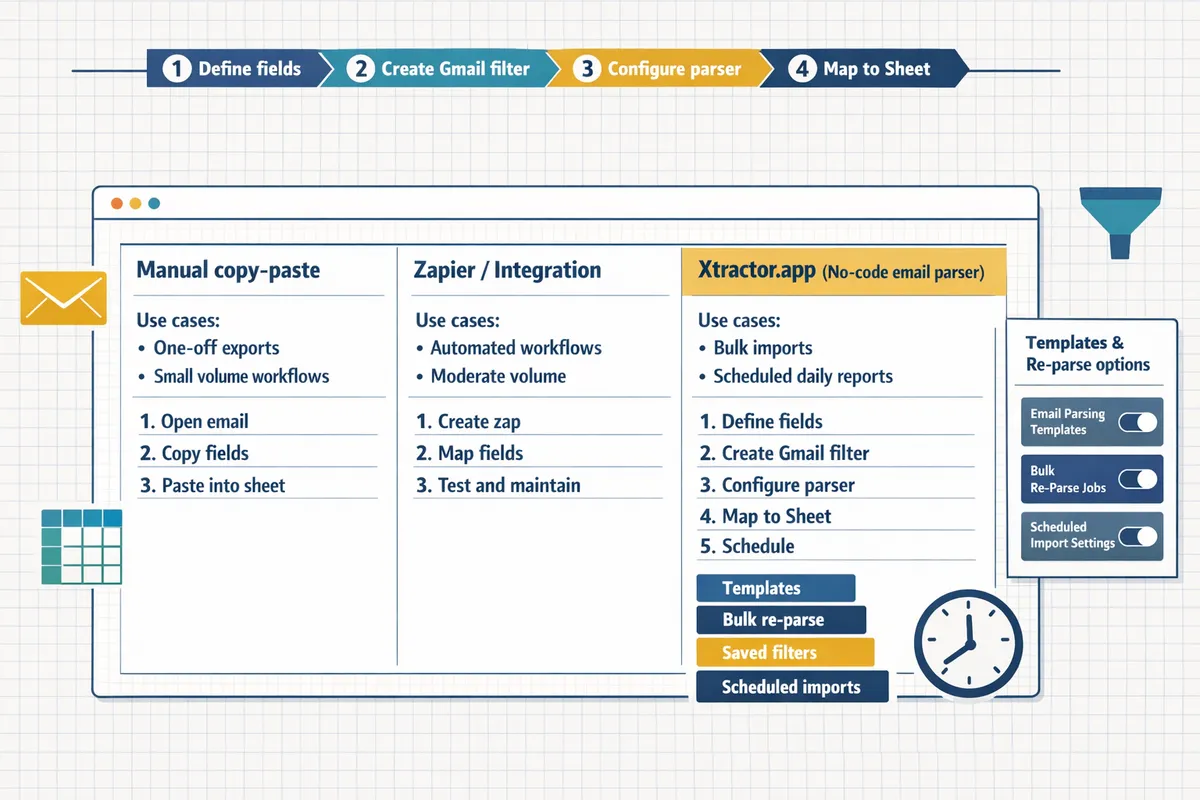
How do you set up automated export from Gmail to Google Sheets without coding?
Set up a no-code pipeline by defining the fields you need, creating precise Gmail filters, configuring xtractor.app parsers, mapping outputs to a Google Sheet, and scheduling recurring imports. xtractor.app can import thousands of emails in a single action or on a schedule, so you can replace manual copy-paste with repeatable workflows.
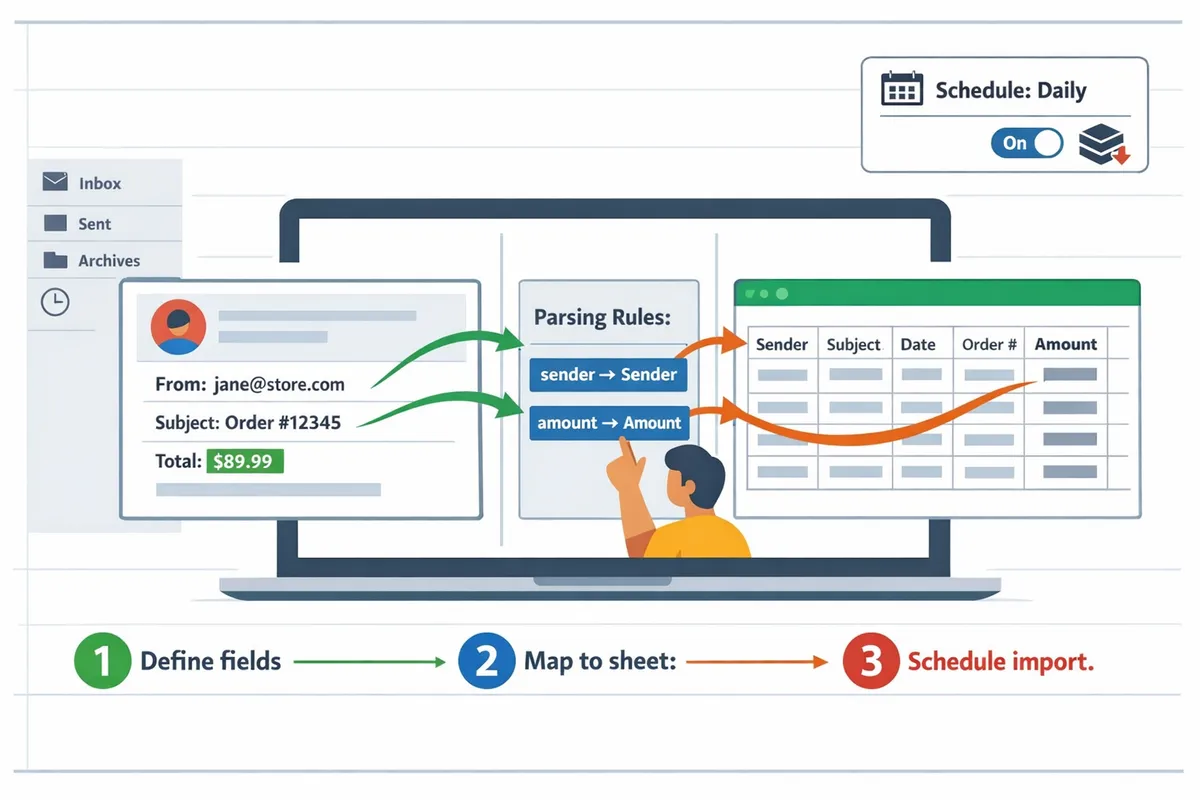
Step 1: Define the exact fields to extract and pick a sheet layout ✅
List the exact data points you need and choose a template tab for consistency. Start with the core columns you will extract (for example: sender, subject, date, order_number, amount, and source_email_id) and pick one of three sheet templates: CRM leads (name, email, lead_source, contact_date), Order imports (order_number, customer, amount, order_date, status), or Expense tracking (vendor, expense_date, amount, category, receipt_ref). Save the chosen template as a sheet tab name so imports append to the same structure every time.
Expected outcome: a sheet with fixed column headers and agreed formats. Common errors: mixed date formats and stray whitespace. Recovery: run a quick normalization pass (convert dates to YYYY-MM-DD, trim text, and enforce currency format) before sending final reports.
Step 2: Create Gmail filters and saved searches to isolate target emails 🔎
Create Gmail filters that reliably capture only the emails you want and save the search for reuse. Use sender addresses, precise subject keywords, and consistent phrases in the body to limit matches (for example: from:orders@vendor.com subject:(Order Confirmation) after:2026/01/01). Save that search or apply a label like xtractor-orders so xtractor.app can target that label.
Expected outcome: a narrow, repeatable set of messages. What can go wrong: overly broad filters that pull unrelated messages. Recovery: run a test by forwarding a matched message to a test label and inspect five samples for false positives before enabling scheduled imports.
Step 3: Configure xtractor.app to parse your emails and test with samples 🧰
Connect your Gmail account to xtractor.app, create parsing contexts for each email format, and run sample parses to validate extraction. Use xtractor.app’s visual selectors to highlight the text you want in a message (for example, click the order number and tag it as order_number). Add a second parsing context for alternate email layouts from different vendors so variations map to the same output fields.
Expected outcome: parsed records that show in a preview grid. What can go wrong: selectors that match extra text. Recovery: refine the selector (narrow the anchor text or add nearby keywords) and re-run the sample parse. For setup detail and template examples, see our guide on How to Automatically Export Emails to Google Sheets: A Step-by-Step GuideXtractor.
Step 4: Map parsed fields to Google Sheets and apply data validation ⚙️
Map each parser output field to the exact Google Sheets column and add validation rules to prevent bad rows. In the mapping screen, point parsed fields like order_number and amount to the corresponding sheet columns. Then apply sheet-level validation: date columns use a date format, amount columns use currency, and order_number uses a unique constraint or a scriptable duplicate check. Add a column named source_email_id to store the message ID for traceability.
Expected outcome: consistent, validated rows written to the target sheet. What can go wrong: duplicate imports. Recovery: enable duplicate protection by comparing source_email_id or order_number before appending. Save the mapping as a template in xtractor.app for reuse across similar workflows.
⚠️ Warning: Remove or redact personal health information and highly sensitive financial details before exporting to shared sheets. Use xtractor.app’s redaction options to mask sensitive fields and restrict sheet access to only necessary users.
Step 5: Schedule, test, and monitor the automated flow ⏱️
Set a schedule in xtractor.app, run at least three test cycles, and check results after each run. Choose hourly, daily, or weekly cadence based on volume and business need. For each test run, verify row counts, open five random rows to confirm field accuracy, and review the xtractor.app error log for parsing failures. Configure email alerts or Slack notifications for failures and threshold alerts (for example, zero rows when five were expected).
Expected outcome: predictable imports with alerts for exceptions. What can go wrong: quota limits or transient Gmail failures. Recovery: retry failed jobs via the xtractor.app dashboard and increase the interval while you investigate the error log.
Step 6: Save templates and document the workflow for handoffs 🗂️
Save parsing contexts, saved searches, and sheet mappings as reusable templates and document the minimal steps a colleague needs to run or troubleshoot the flow. Keep a one-page handoff with: the Gmail filter or label name, the sheet tab used, the xtractor.app parser template name, the schedule, and the contact for support. Store that page with your SOPs and attach links to the templates inside xtractor.app.
Expected outcome: a repeatable onboarding that takes minutes instead of hours. What can go wrong: personnel changeover or missing credentials. Recovery: update the handoff immediately after any change and use the saved templates to recreate the pipeline quickly. For template libraries and deeper setup options, see Gmail to Google Sheets Automatically: The Beginner’s Guide to No-Code Email-to-Sheet AutomationXtractor.
How do you maintain quality, troubleshoot failures, and avoid common mistakes?
Maintain quality and speed recovery by combining automated validation checks, multiple parsing contexts, scheduled audits, and alerting. These controls prevent lost reports, reduce manual rework, and keep compliance risk low. xtractor.app’s preview, saved contexts, and activity log make those controls practical for business teams.
How do you validate imports and keep data quality high ✅
Run automated post-import checks that confirm row counts, required fields, and numeric ranges after every import. Implement these three verification rules in your sheet immediately after each import: 1) Row-count match — compare the number of rows appended to the number of messages xtractor.app reported as parsed. 2) Required-field check — flag any rows where order number, date, or customer email is blank. 3) Numeric-range validation — verify that amounts fall within expected ranges (for example, 0.50 to 10,000 for order totals).
Step-by-step for Google Sheets (no code):
- Add a single summary row that shows parsed_count from xtractor.app and use a formula to compare that to sheet rows. Expected outcome: green pass or red fail.
- Use conditional formatting to highlight empty required fields so reviewers can fix items in minutes.
- Add a validation column that checks amounts and flags outliers for manual review.
xtractor.app’s preview mode helps catch mapping errors before data reaches live reports. For high-value workflows like bookkeeping, schedule a weekly sample audit of 25 random rows to catch subtle drift.
How do you handle emails that change format or have multiple layouts 🔄
Use multiple parsing contexts and map their outputs to the same Google Sheet columns so different templates feed one canonical table. Create a new parsing context when you see a persistent parsing error rate above about 5 percent, a vendor introduces a new template, or a seasonal email adds fields. For example, if a vendor adds SKU lines and 7 of 100 recent order emails parse incorrectly, clone the existing context, adjust rules for the new layout, and test against a set of 50 historical messages.
Checklist to decide: 1) If mis-parses are isolated and minor, edit the active context and re-run. 2) If a new template appears repeatedly or adds fields, create a new context. 3) If multiple vendors use unique templates, create named contexts per vendor and map them to the same columns in Sheets.
xtractor.app saves and version-controls contexts so you can reuse them across inboxes and revert if a change causes regression. Test each new context with historical emails before adding it to the scheduler to avoid sudden data gaps.
What are common failure modes and how do you recover quickly 🛠️
Common failures are filter mismatches, parser misses, Google Sheets permission errors, and quota limits; follow a short triage flow to recover. Triage steps: 1) Confirm your Gmail filters and labels still match incoming messages; if the expected label is missing, add a broad search to capture the missed set. 2) Open xtractor.app’s parser preview to see which fields failed and whether pattern changes caused misses. 3) Check Google Sheets sharing and edit permissions using a dedicated admin account; permission errors often block append operations. 4) Review the xtractor.app activity log and re-run failed imports from there.
Example: if 120 order emails arrived but zero rows appended, first inspect the Gmail filter (common cause), then verify xtractor.app shows parsed items in the activity log. Re-run the import after fixing the filter and confirm rows appear in the sheet.
💡 Tip: Restrict sheet sharing, enable viewer-only links for reports, and log who can edit import mappings.
Keep a single automation admin account for ownership of tokens and permissions to reduce handoffs and accelerate recovery.
How do you measure ROI and time saved by automating email exports 📊
Measure ROI by comparing manual extraction hours to automated cycles using a simple worksheet: (minutes per email × weekly volume) ÷ 60 × hourly cost = weekly manual cost. Create three inputs in a sheet: average minutes to extract one email, emails processed per week, and hourly labor cost. Example: 2 minutes per email, 100 emails/week, $30/hour → (2×100)/60 × $30 = $100/week manual cost.
Then add an automation line with expected weekly maintenance time (for example, 15 minutes) and any subscription costs. Example outcome: manual $100/week versus automated $12.50/week in review time plus subscription. Expected savings: $87.50/week, or about $4,550/year. Include avoided transcription error costs by estimating time spent correcting errors; even a 5 percent reduction in rework can meaningfully raise ROI.
Position xtractor.app as the lower-risk path to scale without hiring extra staff by citing its one-click bulk import, scheduling, and saved contexts that reduce manual review time. For a template and step-by-step setup, see our full step-by-step guide on how to automatically export emails to Google Sheets and the beginner’s guide to no-code email-to-sheet automation.
How to Automatically Export Emails to Google Sheets: A Step-by-Step GuideXtractor
Frequently Asked Questions
This FAQ answers common operational and product questions about exporting emails to Google Sheets without coding. Read the short answers below to resolve setup, security, and reliability questions quickly and decide whether xtractor.app is the right fit for your workflow.
Can I export attachments to Google Sheets? 📎
Attachments are not included in a default spreadsheet export. xtractor.app extracts text fields (subject, sender, amounts, order numbers) into rows and columns; attachments remain stored in Gmail. xtractor.app offers custom attachment-parsing on request and can create a plan to extract attachment metadata or store attachments in cloud storage and place download links in your sheet.
Tip: If you need a record of attachments, have xtractor.app add a column with a secure download link rather than embedding binary data in the sheet.
You can also use a two-step workflow: parse the email body and then run a separate job to fetch attachments into Google Drive, linking the file ID into the sheet. For implementation options and examples, see Linking Emails to Google Sheets for typical attachment-workflow patterns.
How do I keep personal data safe when exporting emails? 🔐
Limit who can edit or view the sheet and exclude sensitive fields during parsing. xtractor.app lets you choose which fields to extract so you can omit direct identifiers like SSNs or full credit-card numbers before any data leaves Gmail.
Set Google Sheet sharing to view-only for most users and keep a short list of editors. Document who has edit rights, run periodic audits of sheet permissions, and use redaction rules in xtractor.app to mask or truncate PII before it is written to the spreadsheet. For a checklist on secure exports and field-mapping best practices, see Gmail to Google Sheets Automatically: The Beginner’s Guide to No-Code Email-to-Sheet Automation.
⚠️ Do not export sensitive health or financial identifiers unless you have a documented legal and security plan; spreadsheets are easy to copy and share.
How accurate is automated parsing compared with manual entry? 📈
Automated parsing usually produces fewer transcription errors when emails follow consistent templates. xtractor.app performs best when you create parsing contexts that match each email template and run preview tests against sample messages.
If your inbox contains many format variants, accuracy drops unless you add multiple parsing contexts or use saved searches to segment messages. Start with small bulk imports and the visual preview in xtractor.app to measure error rates before switching from manual entry. See Parse Email to Google Sheets for tips on testing and improving extraction accuracy.
Can I schedule imports and how often should I run them? ⏲️
Yes. Schedule imports in xtractor.app and choose cadence based on volume and reporting needs. For low-volume reporting and bookkeeping, daily imports usually balance timeliness with simplicity; for high-order volumes, hourly imports capture real-time changes but increase API usage and require monitoring.
Begin with daily scheduled imports and review error logs for a week. If you need faster insight and error budgets allow it, move to hourly runs and add alerting for failed jobs. For step-by-step scheduling instructions, see How to Automatically Export Emails to Google Sheets: A Step-by-Step GuideXtractor.
What happens if an email format changes and parsing fails? ❌
If a format change occurs, the import will either leave fields blank or flag extraction errors depending on your xtractor.app settings. The fastest recovery is adding a new parsing context that matches the new format, re-running the affected import, and updating saved searches to route future messages to the correct parser.
Keep a short incident playbook: identify affected rows, add or edit parsing contexts, reprocess the message set in xtractor.app, and mark the sheet rows as verified. For common troubleshooting steps and error examples, consult How to Save Emails in Google Sheets: A Step-by-Step GuideXtractor.
💡 Tip: Restrict sheet sharing, enable viewer-only links for reports, and log who can edit import mappings.
Keep a single automation admin account for ownership of tokens and permissions to reduce handoffs and accelerate recovery.
Is a no-code tool always faster than Apps Script? ⚖️
No-code tools are faster to deploy for most non-technical teams, while Apps Script gives more flexibility for unique edge cases. xtractor.app gets teams running quickly with reusable parsing contexts, one-click bulk import, and scheduling; Apps Script can help when you need a highly custom transform or integration that a parser cannot express.
Choose xtractor.app when you need repeatable, high-volume exports with minimal maintenance and lower operational risk. Consider Apps Script if your workflow requires bespoke logic that cannot be expressed in parser rules; compare options in Parse Email to Google Sheets to pick the right path.
Next steps to automate email exports into Google Sheets.
You now have a repeatable, no-code pipeline that extracts email fields and appends them to a spreadsheet on a schedule. If you followed the steps, you now know how to export emails to Google Sheets automatically without coding and can replace manual copy-paste with a reliable workflow.
Xtractor.app is an email parsing and data-extraction tool that pulls structured text out of emails and exports it directly into Google Sheets, CSV, or Excel. The product is designed to import thousands of emails in a single action or on a scheduled cadence, parse relevant fields (subject, sender, date, amounts, order numbers, etc.), and produce a clean, tabular output in a spreadsheet for reporting, analysis, or bookkeeping. Key features include one-click bulk import, custom filters to define exactly which pieces of text to extract, the ability to add multiple parsing contexts to handle emails that vary in format, saved searches/filters for reuse, and scheduling to automate daily imports.
Xtractor emphasizes speed and low-friction use: the site claims blazing fast parsing that can process large volumes in less time than manual copying and pasting, and a visual workflow that surfaces extracted data directly in Google Sheets. It supports searching and filtering by subject, sender, and dates to target specific datasets inside an inbox. While attachments are not supported in the default product, the company offers custom parsing for attachments on request and will create custom plans for larger or specialized needs. Customer-facing benefits are reduced manual data entry, fewer transcription errors, faster reporting cycles (e.g., daily revenue/expense/profit calculations), and responsive support that can accommodate non-standard email formats.
Tip: Test parsing rules on 10–20 representative emails before enabled scheduled imports to avoid missed fields or duplicates.
Start a free trial at xtractor.app to run your first import and confirm parsed fields in Google Sheets. For setup variations and reusable templates, see the beginner’s guide to Gmail to Google Sheets automation and our step-by-step export guide for additional examples.