 Xtractor
Processing 2,000 monthly order emails by hand can cost a bookkeeper 8–12 hours and introduce transcription errors. An email parser to Google Sheets is a tool that extracts structured text from emails and writes it into a spreadsheet for reporting or bookkeeping. This how-to guide shows operations managers, bookkeepers, and analysts how to implement Xtractor.app to import thousands of emails at once, extract order numbers and amounts, and schedule automated writes to Google Sheets. Xtractor.app supports one-click bulk import, custom filters, multiple parsing contexts, saved searches, and scheduled imports to create clean tabular output. Building the same pipeline yourself requires credential management, token refresh, retry logic, and parsing rule maintenance. The examples below reveal how saved contexts handle three common invoice formats without code.
Set up Xtractor.app to parse emails to Google Sheets with inbox filters, parsing contexts, and sheet mapping.
This section shows the exact preparation steps to connect Xtractor.app, choose a target Google Sheet, gather sample emails, and create Gmail filters so bulk imports map cleanly. Follow the five preparatory tasks below and test each step with a small import before you run bulk or scheduled jobs.
Create an Xtractor.app account and connect Gmail. 🔌
Sign up on Xtractor.app and authorize Gmail with a read-only mail scope plus Google Sheets write scope via OAuth.
Step 1. Create your Xtractor.app account and choose the Google account that will own imports. Expect OAuth scopes such as gmail.readonly and spreadsheets.
Step 2. Grant Xtractor.app permission to read only the mailboxes you intend to parse; avoid granting broad, domain-wide access unless explicitly needed.
Step 3. Confirm the Google Sheets scope so Xtractor.app can write rows to your target spreadsheet.
DIY note. Building this yourself requires implementing OAuth token refresh, credential rotation, quota handling, and retry logic for transient Gmail API errors; Xtractor.app handles those operational details for you.
For step-by-step screenshots, follow the Xtractor setup guide on parse-email-to-google-sheets.
Select a target Google Sheet and define column headers. 📁
Create a Google Sheet with explicit header columns that match the fields you will extract (date, sender, order_number, amount, subject, raw_text).
- Create or pick a sheet, freeze the header row, and use the exact column names you will map in Xtractor.app.
- Set column types where possible: format the date column as a Date, and the amount column as Number with two decimal places.
- Consider one tab per email template or a single tab with a template_id column to simplify deduplication and reporting.
Expected outcome: Correct headers ensure Xtractor.app’s bulk-import mapper from shifting fields when rows vary in length.
See the import-output design steps in How to Import Data from Email to Google Sheets: 7 Simple Steps for example templates and mapping patterns.
💡 Tip: Use a small test sheet and run a sample import of 20 emails to confirm header mapping before running a full bulk import.
Identify sample emails and plan parsing contexts. 🧭
A parsing context is a configuration that tells Xtractor.app which fields to extract from one email template.
- Collect 10–50 representative emails for each format you expect to handle and label them by template (example: VendorA_order, VendorB_invoice).
- Note where key data appears: order numbers might appear as Order #12345, ORD-2023-0001, or inline after Order ID:; amounts may use $123.45, USD 123.45, or Total: 123.45.
- Mark outliers such as forwarded messages with prefixed text, HTML tables, or emails that place totals in attachments (attachments require a custom plan).
- Create one parsing context per template in Xtractor.app and test it against your labeled samples.
DIY complexity. A homegrown parser needs ongoing rule maintenance, handling format drift, and monitoring extraction accuracy; Xtractor.app’s multiple parsing contexts reduce that upkeep and let you switch contexts when formats change.
1. Order number: Order(?:\s*#| ID:|:)\s*([A-Z0-9-]+)
2. Amount: (?:Total|Amount|Order Total)[:\s]*\$?([0-9,]+\.?[0-9]{0,2})
Use these patterns to seed a context and refine with your sample set.
Create Gmail filters and saved searches to target datasets. 🔎
Build precise Gmail search expressions and save them in Xtractor.app so bulk imports run only on defined inbox slices.
- Create Gmail filters or labels first (recommended): for example, filter all vendor orders with from:orders@vendor.com subject:Order Confirmation and apply label:VendorA_Orders.
- Example search strings to use in Xtractor.app:
- from:orders@vendor.com subject:Order Confirmation label:VendorA_Orders
- from:(receipts@marketplace.com OR orders@marketplace.com) subject:invoice after:2025/12/01 before:2026/01/01
- label:SupportTickets Order #
- Save each search as a named saved search in Xtractor.app and run a preview to confirm the expected email count.
- For bulk imports, choose the saved search rather than the full mailbox to reduce false positives and speed processing.
What can go wrong. Overbroad searches pull unrelated emails; overlapping labels can duplicate imports. Test with limited date windows and adjust queries before full runs.
💡 Tip: Test filters with 20–50 emails and use label:TestImport during validation so you can safely iterate without affecting production sheets.
Verify compliance, permissions, and privacy settings. 🛡️
Confirm that only necessary mailboxes are connected, enable audit logging, and document retention and access controls before importing data.
- Least privilege. Limit OAuth scopes and restrict which Google accounts Xtractor.app can access.
- Access control. Use Xtractor.app team settings to restrict who can create parses, run bulk imports, or change scheduled jobs.
- Logging and retention. Enable extraction logs and record what was imported and when; set a retention policy for raw email text and exported spreadsheets.
- Data handling. Mask or exclude sensitive fields (for example, full social security numbers) before writing to a sheet.
If you need formal compliance details, consult Xtractor.app’s security page for notes on encryption and access controls and align those with your internal data retention policy.⚠️ Warning: Avoid storing unrestricted personal health information or full government IDs in shared spreadsheets unless your retention and access controls meet regulatory requirements.
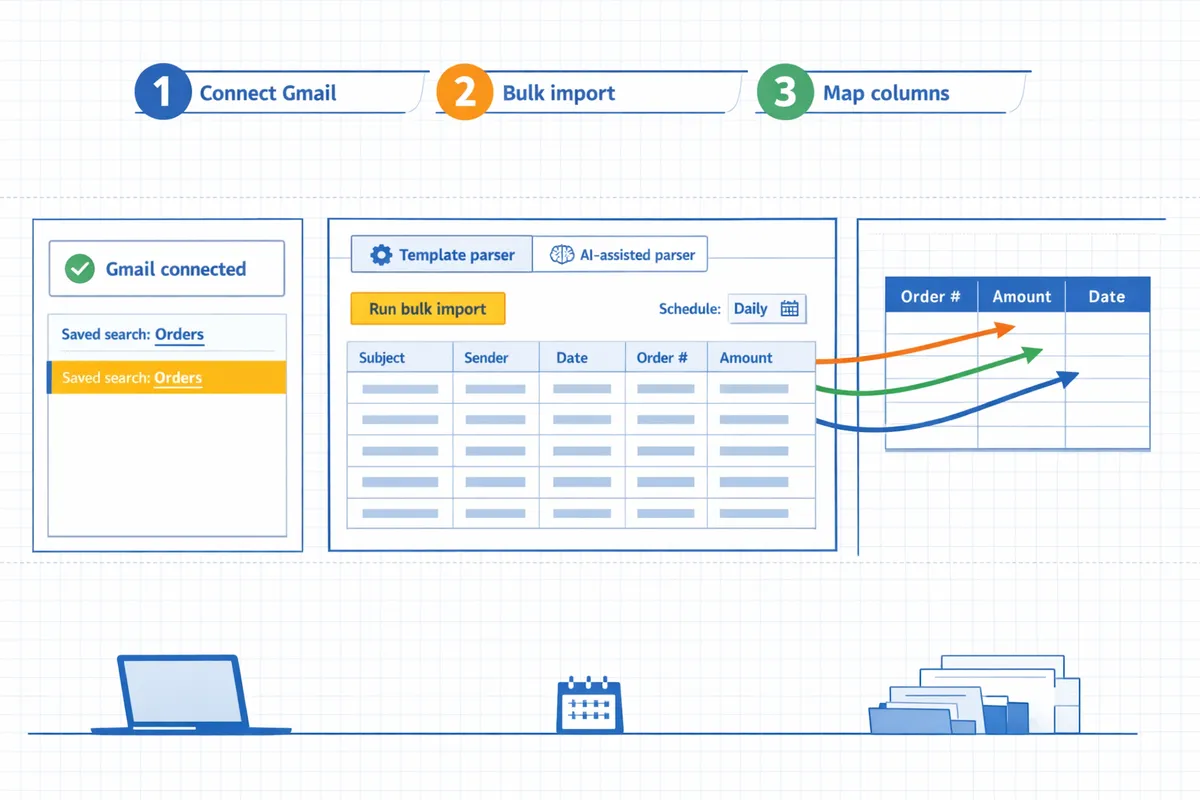
Run bulk imports and build parsing contexts that reliably extract order numbers and amounts from emails to Google Sheets.
This section shows how to run Xtractor.app’s one-click bulk import and create template-based and AI-assisted parsing contexts that write order numbers and amounts into Google Sheets. A parsing context is a configuration that defines extraction rules for a specific email layout, such as fixed offsets, regular expressions, and field mappings. You will run a sample batch, inspect visual previews, fix rules from the error report, and then schedule incremental imports for ongoing syncs.
Start a one-click bulk import and pick a saved search. ▶️
Start a bulk import by selecting a saved Gmail search, choosing the target Google Sheet, and launching one-click import in Xtractor.app.
- Open Xtractor.app and choose “Bulk import.”
- Select the saved Gmail search you prepared. Expect the UI to show total messages, progress, and estimated completion time.
- Choose the destination Google Sheet and the worksheet tab where rows should append.
- Click “Run” to begin; use the pause button to temporarily stop processing or “Cancel” to abort and keep partial results.
Expected outcome: the job creates a staging preview while parsing runs, so you can inspect a live sample before final writes. If you need detailed setup steps for saved searches and filters, see our seven-step import guide for background on filters and initial configuration: How to Import Data from Email to Google Sheets: 7 Simple StepsXtractor.
Create your first parsing context (template-based). 🧩
Create a template-based parsing context by defining fixed offsets, regular expressions for order numbers, and currency patterns for amounts.
- In Xtractor.app open Parsing Contexts and click New template context.
- Pick an email sample from the staging preview that matches the vendor you want to target.
- Add selectors: fixed-line offsets for fields that always appear at the same position, and regex for values that vary.
Sample regex snippets you can copy into Xtractor.app:
- Order number: \b(?:Order|Order No|Order#)[:\s]*([A-Z0-9-]{6,})\b
- Simple numeric order id: \bOrder(?:\sID)?[:\s]*(\d{5,10})\b
- Currency amount (USD/GBP/EUR): \b(?:\$|USD\s?){0,1}([0-9,]+(?:\.[0-9]{2})?)\s?(?:USD|GBP|EUR)?\b
When to use template parsing: use templates when emails follow a consistent layout, for example single-vendor order confirmations or invoice notifications. Template parsing requires less post-checking and yields deterministic extractions. Building the same behavior yourself requires hosting a regex engine, writing robust extraction code, and handling format drift, which adds credential rotation, monitoring, and versioning overhead that Xtractor.app manages for you.
Add a fallback AI-assisted context for variable formats. 🤖
Add an AI-assisted parsing context to capture order numbers and amounts from unstructured or vendor-variable email bodies when template rules fail.
- Create a second parsing context and select AI-assisted.
- Define the target fields (order_number, amount, currency, date) and set the confidence threshold for automatic acceptance.
- Set context precedence so template contexts run first and the AI context only evaluates messages templates do not match.
Practical note: use AI-assisted parsing for receipts, marketplace notifications, and multi-vendor formats that do not fit a fixed template. DIY AI parsing requires maintaining model endpoints, token refresh, retry logic under rate limits, prompt tuning, and monitoring for drift; Xtractor.app handles these operational tasks and surfaces confidence scores so you can review low-confidence results before writing to Google Sheets.
⚠️ Warning: Attachments are not parsed by default. If your orders or invoices arrive as attachments, contact our support for a custom parsing plan.
Map parsed fields to Google Sheets columns and test on a sample batch. 🧪
Map each extracted field to its Google Sheets column and run a 20–100 email test batch to validate alignment in Xtractor.app’s visual preview.
- Create headers in the target worksheet matching your field names (Order ID, Amount, Currency, Date, Source Email).
- In Xtractor.app open Field Mapping and assign each parsing context output to the matching column.
- Run a test batch of 20–100 messages from the staging preview and open the visual preview grid.
- Check that multi-line values and currency formatting align to the correct columns. Fix misaligned selectors or regex and re-run the test batch.
Expected outcome: visual preview shows parsed rows side-by-side with raw email snippets so you can correct rules before any writes to the live sheet. For alternative export flows and examples of saving parsed rows, see How to Save Emails in Google Sheets: A Step-by-Step GuideXtractor.
💡 Tip: Add a “parsed_ok” boolean column and a simple formula to flag duplicates or unexpected blanks before you commit large imports.
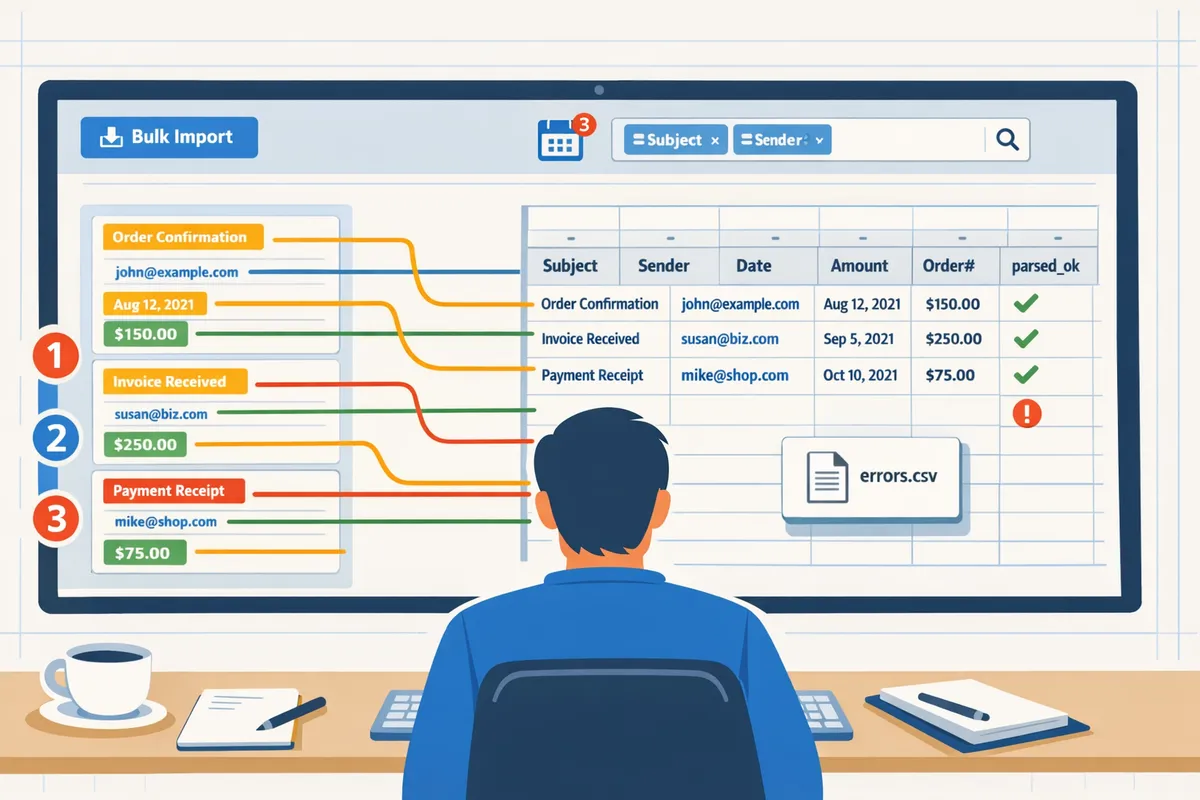
Validate results and export errors to CSV for correction. ⚠️
Validate parsing accuracy by exporting failed or ambiguous extractions to CSV, correcting rules or flagging emails for manual review, then re-run only on that error set.
- After the test batch, open the Error Report and filter by failure type: missing field, low confidence, or multiple matches.
- Export that subset to CSV to annotate corrections or pass to a teammate for manual fixes.
- Update parsing context rules and re-run the parser only on the exported error set to avoid reprocessing validated messages.
Operational benefit: Xtractor.app tracks message IDs and supports incremental re-runs on custom subsets so you avoid race conditions and duplicate rows. If you try to replicate this behavior with DIY scripts you must implement message deduplication, cache invalidation, and retry backoff yourself, which increases maintenance.
Schedule the import or run an immediate sync. ⏱️
Schedule hourly, daily, or ad-hoc incremental imports in Xtractor.app or run an immediate sync to append only new rows to your Google Sheet.
- In the Job Scheduler choose cadence, time window, and whether to run a full re-import or incremental sync.
- Enable “Skip already parsed messages” to avoid duplicate writes.
- Monitor job history for failures and configure email alerts for job errors or low-confidence extractions.
Use case: set hourly incremental imports for same-day order processing and daily full summaries for bookkeeping. For scheduler walkthroughs and automation patterns, see our automation guide: How to Automatically Export Emails to Google Sheets: A Step-by-Step GuideXtractor.
Keywords used: parse emails to Google Sheets in bulk, extract order numbers and amounts from emails to spreadsheet.
Automate schedules, manage format drift, and troubleshoot common parsing errors with a maintenance plan.
A maintenance plan combines scheduled imports, monitoring, template reviews, and security checks to keep parsing reliable and avoid manual rework. Xtractor.app provides scheduling, saved searches, run logs, and multiple parsing contexts so teams can parse emails to Google Sheets in bulk without daily intervention. Follow the steps below to set cadence, detect format drift, and resolve failed runs quickly.
Configure scheduling, saved searches, and incremental imports 🔁
Set schedules with incremental imports and attach saved searches to avoid duplicates and automate regular writes to Google Sheets.
- Pick cadence and scope. Choose hourly, daily, or weekly runs based on email volume (for example, daily at 02:00 for overnight batches). Expected outcome: scheduled job appears in the Xtractor.app scheduler with a next-run timestamp. What can go wrong: overlapping runs cause duplicates; avoid by enabling incremental mode.
- Create saved searches. Filter by sender, subject patterns, and date ranges; save the search and attach it to the schedule. Expected outcome: the schedule targets only relevant emails so the sheet only receives order numbers and amounts.
- Enable incremental imports. Turn on incremental mode to record the last-processed message ID. Expected outcome: subsequent runs only import new messages; recovery: to reprocess a missed window, run a manual bulk import and limit by date.
- Map outputs to the target Google Sheet. Confirm header row alignment and sample 10 rows before activating. Expected outcome: consistent column mapping for parsed fields.
For a full setup walkthrough, see the Parse Email to Google Sheets guide for additional automation tips.
Monitor runs, alerts, and retry logic for failed parses 📣
Monitor run status, parse confidence, and row counts, and configure alerts for failed extractions so issues surface before they affect reporting.
- Signals to monitor: failed parse count, zero-row exports, sudden drops in parsed-field confidence, runtime spikes, and API quota warnings. Example: if the parsed “amount” field drops to zero for a vendor batch, flag that run immediately.
- Set alerts and escalation. Configure email or webhook notifications for runs with >X failures, and route to an on-call owner. Expected outcome: your team receives a triage ticket for problematic runs.
- Retry patterns. Implement a short automatic retry with incremental backoff for transient errors (network, quota). Escalate to manual review after 3 failed attempts.
- Use logs for root cause. Inspect raw email samples and the parsing context that matched; if no context matched, create one and re-run the window.
Tip: Run a weekly smoke test with 20 known-good emails to validate parsing chains and alert rules.
Maintain parsing contexts and handle format drift 🔧
Use versioned parsing contexts, a change log, and quarterly reviews to catch format drift and keep extraction rules accurate.
- Quarterly review checklist. Review top 10 senders, update regex patterns, add new sender patterns, and refresh AI examples for variable formats. Expected outcome: fewer failed parses next quarter.
- Version templates. Maintain a simple changelog: date, author, rule change, reason (for example: vendor moved order number into subject). Expected outcome: traceability for auditors and rollback if a change breaks downstream reports.
- Add new parsing contexts when formats diverge. Example: if Vendor A splits order and invoice into separate messages, create two contexts (one for order confirmations, one for invoices) instead of a single fragile regex. Expected outcome: higher extraction precision and simpler rule maintenance.
- Test after updates. Use a 50-email sample run to validate fields before enabling scheduled runs. Expected outcome: predictable exports of order numbers and amounts to spreadsheet columns.
Xtractor.app supports multiple parsing contexts and AI-assisted examples to reduce ongoing tuning compared with single-regex approaches.
Compare DIY, open-source, and Xtractor.app in TCO and complexity 📊
The table below compares setup effort, ongoing maintenance, monitoring requirements, and hidden operational costs across approaches so you can evaluate total cost of ownership.
| Approach | Setup effort | Ongoing maintenance | Security & compliance | Monitoring & alerts | Hidden complexity | Typical TCO components |
|---|---|---|---|---|---|---|
| DIY script (Apps Script / Gmail API) | Low to medium initial scripting, plus OAuth configuration | High (credential rotation, token refresh, script updates for format drift) | You own scopes and logs, must implement encryption and access controls | Developer must build logging, retries, alerting | Token refresh, quota handling, concurrent runs, race conditions on writes | Dev hours, monitoring, Google OAuth upkeep, error triage |
| Self-hosted open-source parser | High: deploy server, set up mail ingestion, storage | High: OS patches, dependency updates, scaling, retries | Must manage TLS, storage encryption, audit logs | Requires Prometheus/ELK or similar for alerts | Cache invalidation, backoff, quota limits, operation runbooks | Server costs, engineer hours, monitoring stack, SRE ops |
| Xtractor.app | Low: UI setup, saved searches, schedule mapping | Low to medium: update parsing contexts, quarterly reviews | Built-in access controls, audit logs available, enterprise options | Built-in run logs, alerts, re-run windows | Minimal: no token rotation, product handles quotas and retries | Subscription, occasional support or custom parsing fees |
For details on implementation patterns, read our How to Automatically Export Emails to Google Sheets guide. Refer to the Xtractor.app pricing page for subscription and enterprise options that match your volume and compliance needs.
Security, compliance, and privacy checklist for financial emails 🔒
Use strict access controls, encryption in transit, audit logs, and retention policies to keep parsed financial data compliant and auditable.
- Access controls. Grant sheet edit rights only to accounting and operations roles; use SSO for enterprise accounts. Example: create a Google group for parsers and restrict sharing to that group.
- Encryption. Ensure TLS for email ingestion and OAuth for Google Sheets writes. Document encryption controls for auditors.
- Audit logs. Keep run logs, who changed parsing contexts, and export snapshots for each monthly close. Example: retain the last 12 months of run logs in a secure storage location.
- Data minimization and retention. Store only necessary fields (order numbers, amounts, dates). Define and document retention periods for raw email extracts and parsed sheets.
- Sensitive data rules. Strip or mask full payment card numbers before writing to sheets; never store full card data in spreadsheets.
⚠️ Warning: Do not store full payment card numbers or unredacted PII in Google Sheets; require redaction or tokenization before export.
When you need enterprise controls or custom attachment parsing, request Xtractor.app’s enterprise plan or a custom parsing engagement so the vendor can provide contract-level security and support.
For setup examples that map directly to Google Sheets workflows, see How to Save Emails in Google Sheets and How to Import Data from Email to Google Sheets: 7 Simple Steps.
Frequently Asked Questions
These FAQs answer the buyer questions we see most often about accuracy, attachments, scheduling, cost, and handling changing email formats. Each answer points to the exact setup or feature doc you’ll need next.
Can Xtractor.app parse emails to Google Sheets in bulk? 📥
Yes. Xtractor.app supports one-click bulk imports and scheduled incremental imports to parse emails to Google Sheets in bulk. Xtractor.app uses saved searches and inbox filters so you can target specific senders, subjects, or date ranges and push thousands of messages into a single sheet without manual copy/paste. For setup details and bulk-import best practices, follow the step-by-step bulk import instructions in our How to Automatically Export Emails to Google Sheets: A Step-by-Step GuideXtractor and the Parse Email to Google SheetsXtractor setup guide.
How do I extract order numbers and amounts from emails to spreadsheet? 🧾
Use template parsing with regex for consistent formats and add an AI-assisted parsing context for variable emails to extract order numbers and amounts from emails to spreadsheet. Start by identifying three to five representative emails, create parsing contexts for order_number and amount, test those contexts on a sample batch, then map each field to your sheet columns. Example: a regex like Order\s?#?(\d{6,10}) captures numeric order IDs; normalize currency by stripping symbols and converting decimal separators before writing to the sheet. See field-mapping steps and examples in How to Import Data from Email to Google Sheets: 7 Simple StepsXtractor and the Parse Email to Google SheetsXtractor walkthrough.
Does Xtractor.app support attachments or PDF parsing? 📎
Not by default; attachments and PDF parsing require a custom parsing plan from Xtractor.app. The standard product extracts email headers and body text only, so workflows that need OCR, invoice table extraction, or multi-page PDF parsing require custom work to handle binary attachments, OCR accuracy tuning, and layout-specific extraction rules. If attachments are part of your flow, request a custom plan so Xtractor.app can scope OCR, file-type handling, and mapping to spreadsheet columns. For guidance on email-to-sheet attachment workflows and alternatives, see How to Save Emails in Google Sheets: A Step-by-Step GuideXtractor.
How do I handle format drift when email templates change? 🔁
Implement monitoring, failed-parse logging, and scheduled context reviews to detect and fix format drift rapidly. Keep a library of example emails for each sender/template, log every failed or low-confidence parse to a parsing exceptions sheet, and schedule weekly or biweekly context checks depending on volume. Xtractor.app’s saved searches and scheduled imports let you rerun suspect batches after updates. For operational checklists and scheduling examples, see our automation walkthrough in How to Automatically Export Emails to Google Sheets: A Step-by-Step GuideXtractor.
💡 Tip: Log failed parses to a dedicated sheet and assign a weekly review—catching format drift within one week typically prevents downstream reconciliation work.
What are the security and compliance features for financial data? 🔒
Xtractor.app provides access controls, encryption in transit and at rest, and audit logging to support secure handling of financial data. During setup confirm retention policies, least-privilege access, and SSO or service-account options for Google Sheets access. Also verify where processed data is stored and the available controls for data retention and export. For setup and permission recommendations tied to Google Sheets workflows, consult Parse Email to Google SheetsXtractor and include least-privilege service accounts when mapping outputs to shared spreadsheets.
Is building a DIY parser a viable alternative? 🛠️
Technically yes, but DIY adds significant operational complexity and ongoing maintenance compared with using Xtractor.app. A DIY route requires building and maintaining credential rotation, token refresh, Gmail API quota handling, exponential backoff and retry logic, monitoring, and a playbook for format drift and cache invalidation. Below is a concise comparison of expected burdens and ongoing costs.
| Operational area | DIY build | Xtractor.app |
|---|---|---|
| Authentication & credentials | You must implement token refresh and secure storage. | Xtractor.app manages OAuth and service accounts. |
| Rate limiting & quotas | Implement quota checks, backoff, and retry logic. | Xtractor.app handles rate limits and batching. |
| Parsing maintenance | Build template rules, retrain AI models, and fix drift manually. | Xtractor.app provides contexts, scheduling, and support for updates. |
| Scheduling & retries | Build scheduler, idempotency, and retry workflows. | Xtractor.app includes scheduling and retry management. |
| Total cost & time | Higher initial dev time plus ongoing maintenance. | Lower operational overhead and faster time to value. |
If you plan to prototype DIY, follow the short checklist in our Parse Email to Google SheetsXtractor guide so you scope credential handling and monitoring up front.
You now have a repeatable email-to-sheet pipeline ready for scheduled imports.
This guide gives operations managers, bookkeepers, and analysts a clear path to capture structured data from email at scale. By following the steps you should be able to run an email parser to Google Sheets that extracts order numbers, amounts, dates, and sender info into a clean table for reporting and bookkeeping.
Xtractor.app is an email parsing and data-extraction tool that pulls structured text out of emails and exports it directly into Google Sheets, CSV, or Excel. Start a free trial at Xtractor.app to create your first parsing job, map fields, and run a one-click bulk import or a scheduled cadence that fits your reporting cycle. For script-focused setups, see our Parse Email to Google Sheets guide and for workflow examples consult How to Save Emails in Google Sheets: A Step-by-Step Guide.
If you need to parse emails to Google Sheets in bulk, plan saved searches and use custom parsing contexts to handle format variations; the custom parsing contexts approach will reduce manual rules and rework.
💡 Tip: Test saved searches on a 100-email sample before scheduling a full bulk import to catch parsing edge cases.