 Xtractor
Copying order confirmations and expense emails from Gmail into spreadsheets can eat several hours a week for small businesses. Gmail to Google Sheets automatically is the process that extracts structured text from email and appends it as rows in a spreadsheet. On our website, xtractor.app parses emails and exports clean, tabular data into Google Sheets, CSV, or Excel with bulk import, filters, multiple parsing contexts, and scheduling. This beginner’s guide on our automatically pulling data into Google Sheets starts at zero and shows no-code parser setups so you stop wasting time and avoid transcription errors. Follow simple workflows to capture receipts, invoices, and order confirmations and learn how to extract data from Gmail; the examples reveal which filters catch tricky formats.
What does ‘gmail to google sheets automatically’ mean and what data can you extract?
Gmail to Google Sheets automatically is a process that extracts structured text from emails and writes it into a spreadsheet without manual copying. This section defines the core pieces you will configure, the common fields you can export, and the parsing vocabulary you will encounter when building an automation. Understanding these details helps you pick the right tool and avoid hours lost to manual cleanup.
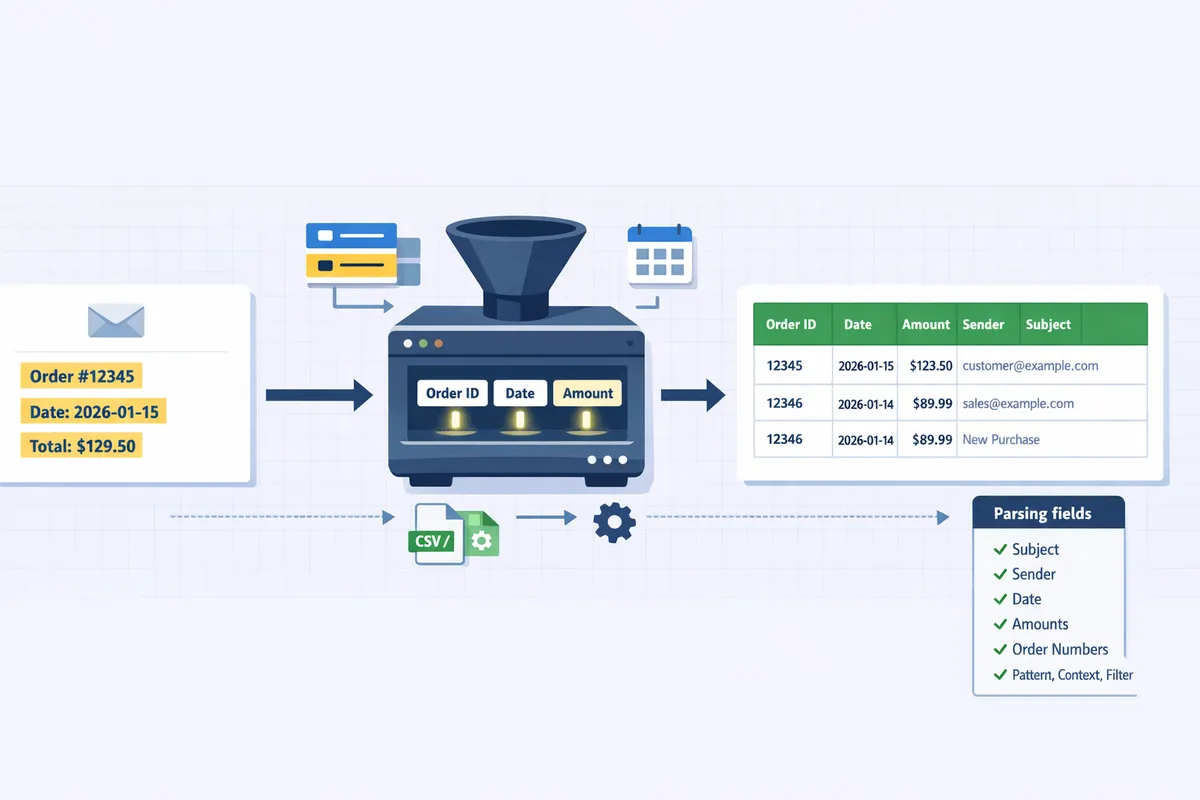
What is email parsing and how does it work? 🧩
Email parsing is a data-extraction process that finds predictable text patterns inside emails and converts them into spreadsheet fields. Email parsing uses rules or templates that identify text (for example, “Order #12345” or “Total: $42.50”) and maps those values to named fields in a sheet. For example, a parser can pull an order number, order date, total, and line items from a receipt email by applying a saved template or a set of filters. Our website’s Xtractor.app gives a visual parsing workflow so you can highlight example values and save that pattern as a reusable rule. Xtractor.app also supports multiple parsing contexts so the same inbox can yield structured rows for receipts, invoices, and support tickets without manual reformatting.
Which Gmail fields and content you can export to Sheets 📋
You can export email metadata and parsed body content—subject, sender, recipient, date, labels, order IDs, totals, and line items—into Google Sheets. Common exports and business uses include:
- Subject. Use for campaign tests or ticket titles.
- From (sender). Use to group vendor invoices or supplier replies.
- To / CC. Use to verify routing or identify the account used.
- Date / time. Use for time-based revenue or expense reporting.
- Labels. Use to filter only “invoices” or “receipts” into a sheet.
- Parsed body fields (order ID, total, item lines). Use for bookkeeping and daily sales summaries.
Attachments are excluded by default in many tools; if you need invoice PDFs parsed, our website can arrange custom parsing for attachments through Xtractor.app. For step-by-step export setup and sample field mappings, see our walkthrough on How to Automatically Export Emails to Google Sheets: A Step-by-Step GuideXtractor and the technical parsing examples in Parse Email to Google SheetsXtractor.
How no-code tools differ from scripts and manual exports ⚖️
No-code tools provide prebuilt connectors, filters, and scheduling so non-developers can send Gmail to Google Sheets automatically with minimal setup. Below is a concise comparison of common approaches.
| Approach | Setup time | Ongoing maintenance | Typical risk / cost | Best for |
|---|---|---|---|---|
| No-code (Xtractor.app) | Minutes to an hour | Low. Saved templates and scheduled runs | Lower risk of breakage; vendor support for format changes | Business users who need fast, repeatable imports |
| Apps Script / custom scripts | Hours to days | Medium to high. Requires updates when Gmail/Sheets change | Breaks silently unless monitored; needs dev time | Teams with dev capacity and one-off custom needs |
| Manual export (copy/paste, CSV) | Minutes per batch | High time cost; human errors | High labor cost and transcription mistakes | Very small volume or one-off audits |
No-code tools like Xtractor.app reduce the hours you spend on repetitive entry and cut transcription errors by applying the same parsing rules across thousands of emails. Our website recommends scheduled imports and saved searches to avoid hitting Gmail or Sheets quotas.
⚠️ Warning: Large daily volumes can trigger Gmail API or Sheets write limits. Use scheduled, batched imports and saved filters to reduce quota errors.
For a practical no-code workflow you can set up today, see our guide on How to Connect Google Sheets to Gmail and the automation overview in Unlock the Power of Automation: From Email to Google Sheets in SecondsXtractor.
How do you start sending Gmail to Google Sheets automatically with no code?
Start by choosing a filter, collecting 10–30 representative emails, and building a reusable parsing template in xtractor.app. This approach reduces tuning time and limits extraction errors when you first export Gmail to Google Sheets without coding. The workflow below walks non-technical users through a safe, test-driven onboarding path that produces a template you can reuse for reporting or bookkeeping.
Quick 6-step setup (no code) for your first automation ✅
Follow these six steps to create a no-code Gmail-to-Sheets automation using xtractor.app and a connector like Zapier or Make.
- Pick the filter. Choose a label, sender, or subject keyword that narrows results to the single email type you want to parse.
- Add sample emails. Save 10 representative messages to a folder or label so you can test field extraction against real variance.
- Define fields to extract. In xtractor.app, highlight or name the values you need (order number, total, date, customer email).
- Map fields to sheet columns. Create column headings in Google Sheets and assign parsed fields to each column inside xtractor.app.
- Run a bulk import or schedule. Use one-click bulk import for historical emails or enable scheduling for new messages.
- Verify results in Google Sheets and adjust extraction rules where items misalign.
💡 Tip: Start with 10 representative emails when building a template; this reduces false positives and speeds up tuning.
For a full walkthrough of connector options and setup screens, see our step-by-step export walkthrough on the site.
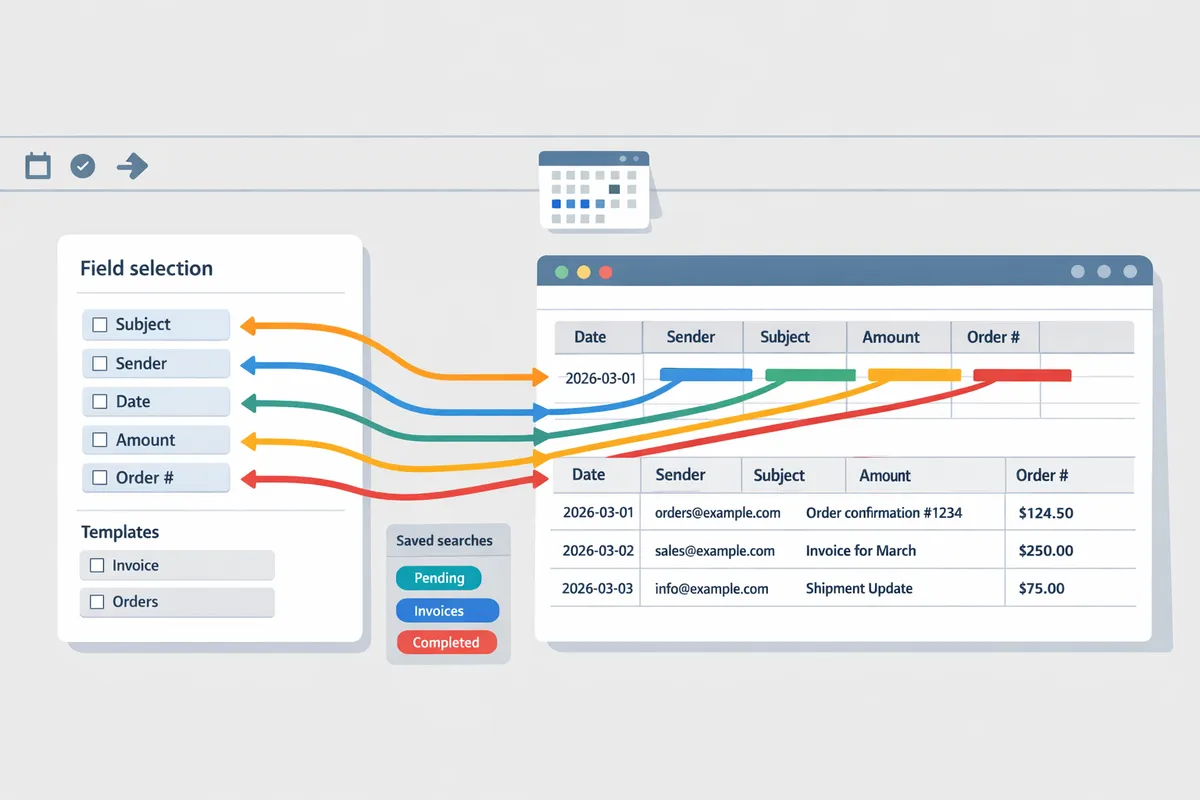
How to map fields and build reusable templates 🛠️
Field mapping is a process that connects parsed values from emails to specific Google Sheets columns. Field mapping is key to making every email become a single structured row you can analyze.
Start by defining the field name in xtractor.app (for example, Order ID, Amount, Date). Use at least 10 sample emails to capture format variations like different currency symbols or extra whitespace. Add parsing contexts in xtractor.app when one sender uses multiple templates; each context acts like a conditional rule set so the parser picks the correct extraction logic per email format.
Save mappings as a template or saved search inside xtractor.app so you can reuse the setup the next time similar messages arrive. For teams, export a sample CSV from your sheet and share the column layout so coworkers can review mappings without accessing Gmail. If you prefer a code-based alternative for highly custom cases, our parse email guide compares Apps Script methods with the no-code option.
Bulk import vs scheduled imports: which to choose? ⏱️
Use bulk import for historical backfills and scheduling for ongoing automatic updates.
| Option | Best for | Typical setup time | When to choose |
|---|---|---|---|
| Bulk import | Backfilling months or years of messages | 5–30 minutes to configure, depending on volume | When you need one-time migration or a large backfill before reporting |
| Scheduled imports | Continuous reporting and dashboards | 2–10 minutes to schedule after template exists | When you want hourly, daily, or weekly updates without manual work |
xtractor.app supports one-click bulk import for large historical sets and built-in scheduling to keep Sheets current. Start with a bulk import to populate past data, then enable a scheduled job to append new rows automatically.
Permissions and security checklist before you run exports 🔒
Before you run exports, grant only the minimal Gmail and Sheets permissions and restrict the automation to specific labels, senders, or date ranges.
- Use label- or sender-based filters so the tool reads only messages you intend to export.
- Grant the smallest OAuth scopes required; our setup screens explain which scopes xtractor.app requests and why.
- Use service accounts or team accounts for shared workflows so personal inboxes stay private.
- Limit Google Sheet access to the smallest set of editors and enable view-only where possible.
- Monitor Gmail and Sheets quotas if you plan to process large volumes and consult our connection guide for quota best practices.
For step-by-step connection and permission screenshots, follow our guide to connect Google Sheets to Gmail, and review the detailed step-by-step export walkthrough to align settings with your security needs.
Which common workflows and templates let you export Gmail to Google Sheets without coding?
Common, repeatable templates let teams send Gmail to Google Sheets automatically for orders, tickets, receipts, and leads. A parsing template is a reusable mapping that tells the parser which pieces of text to extract from an email and which spreadsheet column to place them in. Below are ready-to-adapt templates, field mappings, and a practical comparison of DIY connectors versus a dedicated parsing tool like xtractor.app.
E-commerce orders template: fields and sample mapping 🛒
An e-commerce orders parsing template extracts order number, customer email, total, currency, and item summary into separate columns for revenue reporting. Our tool xtractor.app uses saved searches and column maps so you can apply one template across common receipt formats from Shopify, WooCommerce, and marketplaces. Use this column map as a starting point:
- OrderID -> order_number
- Date -> order_date
- CustomerEmail -> customer_email
- Total -> total_amount
- Currency -> currency_code
- Items -> item_summary
Build formulas in Sheets to compute daily revenue from the total_amount column, and keep a helper column that normalizes currency codes before summing. If you expect several receipt formats, add an alternate parsing context in xtractor.app to catch branded variations and reduce manual review. For step-by-step setup and scheduling, see our step-by-step export guide: How to Automatically Export Emails to Google Sheets: A Step-by-Step GuideXtractor.
Support ticket template: tracking status and SLA 🛎️
A support ticket template captures ticket ID, sender, timestamp, subject, and status labels so you can track volume and SLA in Sheets. Use label-based filters in xtractor.app to separate inbound customer threads from internal notes and to capture Gmail labels such as “urgent” or “escalated.” Map these fields to columns:
- TicketID -> ticket_id
- From -> requester_email
- ReceivedAt -> received_timestamp
- Subject -> subject
- Labels -> status_label
Then create pivot tables on request volume by status_label and a calculated column for response_time using timestamp differences. Saved searches let you re-run the same filter across date ranges without rebuilding rules. For a connection checklist and best practices, see our guide on connecting Sheets and Gmail: How to Connect Google Sheets to GmailXtractor.
Expense and receipt parsing template: best practices 🧾
An expense parsing template pulls merchant, date, amount, and payment method and adds a validation column to flag rows needing manual review. Our product, xtractor.app, writes parsed fields into a sheet where you can add automated checks such as “amount > 0” and currency validation. Recommended column mapping:
- Vendor -> merchant_name
- Date -> expense_date
- Amount -> expense_amount
- Currency -> currency_code
- PaymentMethod -> payment_method
- ReceiptRaw -> receipt_excerpt
- NeedsReview -> validation_flag (formula-driven)
Best practices: normalize dates to ISO format in the parsing step, include a validation_flag column with simple rules (missing merchant or non-numeric amount), and periodically export the validation failures for accountant review.
⚠️ Warning: Avoid storing full credit card numbers or sensitive personal health information in Sheets. Mask or exclude those fields during parsing.
For template-driven export and recurring import schedules, consult our no-code transfer workflow article: Automatically transfer email data to Google Sheets.
Comparison: Apps Script (DIY) vs Zapier/Make vs xtractor.app
Choose a solution based on your team’s time, maintenance tolerance, bulk needs, and privacy requirements.
| Approach | Setup time | Ongoing maintenance | Supports bulk import | Privacy controls | Cost |
|---|---|---|---|---|---|
| Google Apps Script (DIY) | Medium to high. Script, auth, deploy. | High. You maintain code, quotas, and error handling. | Limited without extra work. | Full control, but requires secure coding. | Low if in-house; time cost high. |
| Zapier / Make (no-code connectors) | Low. Visual flows and templates. | Medium. Pay-per-zap and adjust flows when email formats change. | Batch import often requires extra steps or paid plans. | Moderate. Third-party access to mailbox required. | Recurring subscription fees. |
| xtractor.app (our tool) | Low. Point-and-click templates and saved searches. | Low. One-click bulk import and scheduled runs reduce upkeep. | Built for bulk imports and scheduled extraction. | Fine-grained filters and account controls; minimal scripting. | Subscription with predictable pricing. |
This table reflects trade-offs teams report when moving from manual copying to automated parsing. For a hands-on compare-and-choose checklist and setup walkthroughs, read our parsing guide: Parse Email to Google SheetsXtractor.
Handling edge cases and varied email formats 🔀
Handle layout variations by adding multiple parsing contexts and routing mismatches to a “needs review” sheet. Our tool xtractor.app supports multiple parsing contexts so you can maintain one primary template and several alternates for known brand variations. Follow this workflow:
- Collect 10–30 representative emails for each sender or template.
- Create a primary parsing template and test it against the sample set.
- Add alternate parsing contexts for formats that fail the primary rule.
- Route unmatched emails to a “needs review” sheet where an operator tags them and you save a new context.
💡 Tip: Save a canonical example for each vendor as a training case. That reduces false positives when new versions of an email arrive.
Note on attachments: attachments are not parsed by default; request custom parsing if receipts arrive as PDFs or images because that requires additional processing and a tailored plan. For full export and scheduling steps, follow our detailed setup article: How to Automatically Export Emails to Google Sheets: A Step-by-Step GuideXtractor.
How do you maintain, scale, and secure Gmail-to-Sheets automation over time?
Maintain, scale, and secure gmail to google sheets automatically by combining active monitoring, quota-aware scheduling, strict access controls, and a plan to move to xtractor.app when volume or format variety increases. These practices keep data quality high, prevent report breakage, and reduce manual firefighting as your email flow grows. Below are practical steps and checklists our website uses with customers to keep email-to-sheet automations stable and audit-ready.
Monitoring and error handling for long-running automations 📈
Set automated alerts and an exceptions workflow to catch parsing failures and schema changes before reports break. Configure a daily summary of parsing errors sent to the owner and write failed rows to an “exceptions” tab in Google Sheets so non-technical team members can triage problems. Include these columns in the exceptions tab: source email ID, received date, raw extracted text, parsing template used, and failure reason.
Use scheduled health checks that validate schema against a golden example row. Our website recommends wiring alerts to Slack or email and keeping a changelog for template edits. xtractor.app captures failed rows and preserves the original email text so you can fix templates without hunting for examples. For setup guidance, see our step-by-step export tutorial on how to automatically export emails to Google Sheets.
💡 Tip: Always capture the original email ID and raw payload for every failed parse. That single column cuts debugging time by letting you replay the exact input.
Dealing with Gmail and Sheets quotas and large volumes ⚖️
Manage Gmail and Google Sheets quotas by batching imports, throttling runs, and testing with scaled samples before you move to hourly schedules. A quota is a limit Google imposes on reads or writes per minute/day; hitting these causes failed reads, write rejections, or API backoffs. Test a scaled sample (for example, 1,000 representative messages) to measure runtime and failure modes before increasing frequency.
Recommended tactics:
- Batch large historic imports into chunks of 500–2,000 messages per job.
- Use scheduled daily or off-peak runs rather than minute-level polling for heavy inboxes.
- Implement incremental checkpoints so retries resume from the last succeeded message.
xtractor.app supports one-click bulk import and scheduled daily runs, which reduces the need to build custom throttling logic. For connection and scheduling best practices, review our guide on connecting Google Sheets to GmailXtractor.
Security, access control, and compliance checklist 🔐
Secure your automation by applying least-privilege access, conservative OAuth scopes, and data redaction for regulated fields. An OAuth scope is a permission set an app requests to read or write a user’s Google data; request only the scopes you need and document them in your audit log.
Checklist:
- Limit editor access to template owners only.
- Use service accounts or centrally managed app credentials where possible.
- Redact or skip personal identifiers (full card numbers, health data) before writing to Sheets.
- Keep an audit trail of template changes and who approved them.
xtractor.app supports central credential management and audit logging for template edits, and our Connect Google Sheets to Gmail guide includes recommended OAuth scopes.
⚠️ Warning: Avoid exporting payment card data or personal health information to Google Sheets unless your team has documented controls and a compliance plan.
When to use xtractor.app instead of DIY or connector tools 🤝
Choose xtractor.app when recurring email formats, bulk imports, or ongoing maintenance costs exceed the time budgets of manual scripts or point-and-click connectors. DIY scripts and connectors work for small volumes or single-use exports, but they require continuous tuning as email formats drift and quota limits change.
The table below compares common approaches so you can pick the right path for your team.
| Option | Typical setup time | Ongoing maintenance | Best for | Notes |
|---|---|---|---|---|
| DIY (Apps Script) | Low to medium | High (debugging, quota handling) | One-off exports or developer-led teams | Our Parse Email to Google Sheets guide shows scripts, but scripts need regular checks. |
| No-code connectors (Zapier/Make) | Fast | Medium (connector updates, cost) | Low-volume real-time alerts | Connectors can incur per-action costs and break with template changes. |
| xtractor.app | Medium | Low (saved templates, bulk import) | Bulk imports, recurring reports, multi-format inboxes | xtractor.app centralizes parsing contexts and reduces manual tuning. |
Refer to our automatically transfer email data to Google Sheets article to compare workflows and pick the right cadence.
Scaling checklist and governance for multi-user teams 📋
Scale gmail to google sheets automatically using clear ownership, naming conventions, and periodic audits so teams share automations without conflicts. Assign one template owner per parsing template and enforce a naming scheme such as team_project_template_v1. Archive templates older than a year unless actively used.
Quarterly governance steps:
- Run a template health report that samples 200 recent emails per template. Fix mappings with >5% failure.
- Review access lists and remove dormant editors.
- Archive or rename templates that overlap functionality.
- Update retention rules for extracted data and delete samples no longer needed.
xtractor.app supports saved searches and template sharing so teams can reuse parsing contexts and avoid duplicate templates. For practical connection steps and governance patterns, see our Connect Google Sheets to GmailXtractor walkthrough.
Frequently Asked Questions
This FAQ answers the practical questions beginners ask about automating Gmail to Google Sheets automatically, including accuracy, attachments, quotas, privacy, and time to set up. Use these quick answers to choose a tool, plan testing, and avoid common pitfalls.
Can I send Gmail to Google Sheets automatically without coding? 🤖
Yes. No-code parsing tools and connectors let you send Gmail to Google Sheets automatically using filters, saved templates, and scheduled imports. Our website supports one-click bulk import and scheduled runs so non-developers can build a repeatable workflow without Apps Script. For hands-on setup steps, follow our step-by-step setup guide for exporting emails to Sheets and the guide that explains connecting Sheets to Gmail for best practices and authentication details.
How accurate is parsing text from emails into spreadsheet fields? ✍️
Accuracy depends on how consistent your email formats are and how well you tune the parsing template. Parsers typically reach high accuracy on predictable formats (order confirmations, receipts, standardized notifications) after you provide 10–30 representative emails and adjust field anchors. You should add a validation column in the sheet to flag low-confidence extracts for manual review; this reduces downstream errors in reporting and bookkeeping.
Can attachments be exported to Google Sheets as data? 📎
Attachments are not parsed by default in most no-code tools; you can export attachment metadata (filename, content type, sender, date) into a sheet but not the attachment body without extra processing. Our website extracts filenames and metadata automatically; if you need the text inside PDFs or images, request a custom plan for OCR and attachment parsing so we can map those fields into your spreadsheet.
What are the Gmail and Google Sheets limits I should watch for? ⚠️
You must watch Gmail read and API quotas and Google Sheets write limits to avoid rate errors and quota blocks. Plan batch imports or scheduled runs (for example, hourly or daily) instead of continuous polling to keep usage under quota and test your expected daily email volume against Google’s published limits before scaling. If you hit limits frequently, xtractor.app’s scheduled imports and bulk actions help spread writes and lower the chance of burst failures.
Is it safe to export sensitive email data to Google Sheets? 🔐
It can be safe if you apply least-privilege access, restrict sharing, and use encryption in transit. Our website recommends limiting who can view the target Sheets, auditing access regularly, and masking or removing personal identifiers when policy or law requires extra protection.
⚠️ Warning: Restrict sheet sharing and enable access logging before storing personal, financial, or health-related email data.
How much time does setting up an automated Gmail-to-Sheets workflow take? ⏱️
A basic no-code setup usually takes 15–60 minutes depending on how many fields and email formats you handle. Collect 10–30 representative emails first, create a parsing template on our website, and run a bulk import to validate results; that workflow often surfaces the small adjustments you need. For varied formats, add multiple parsing contexts (templates) which extends setup time but reduces ongoing manual fixes.
💡 Tip: Assemble example emails for each format before you build templates; that reduces tuning time significantly.
When should I choose xtractor.app over Zapier, Make, or Apps Script? ✅
Choose xtractor.app when you need bulk historical imports, multiple parsing contexts for varied email types, saved templates, and lower ongoing maintenance. Zapier and Make work well for simple, continuous triggers but can incur higher per-item costs and require many separate rules for multiple email formats. Apps Script gives full control but requires coding and ongoing script maintenance; xtractor.app centralizes parsing, reduces template drift, and shortens setup time for recurring reports.
Next steps to get Gmail messages into a sheet automatically
Set up a no-code parser and a scheduled import to move gmail to google sheets automatically. This approach removes repetitive copy-paste work, cuts transcription errors, and frees hours for higher-value tasks. DIY scripts and manual rules often cost weeks to maintain and introduce missed rows or broken schedules that hurt reporting.
Xtractor.app is an email parsing and data-extraction tool that pulls structured text out of emails and exports it directly into Google Sheets, CSV, or Excel. The product is designed to import thousands of emails in a single action or on a scheduled cadence, parse relevant fields (subject, sender, date, amounts, order numbers, etc.), and produce a clean, tabular output in a spreadsheet for reporting, analysis, or bookkeeping. Key features include one-click bulk import, custom filters to define exactly which pieces of text to extract, the ability to add multiple parsing contexts to handle emails that vary in format, saved searches/filters for reuse, and scheduling to automate daily imports.
Create your first parser in Xtractor.app and follow our step-by-step export guide to connect parsed data to Sheets: https://xtractor.app/how-to-automatically-export-emails-to-google-sheets/. For tips on linking spreadsheets to an email workflow, see our guide to connecting Google Sheets and Gmail: https://xtractor.app/connect-google-sheets-gmail/.
Start with Xtractor.app to stop manual entry and get dependable, repeatable email-to-Google Sheets automation. Subscribe to our newsletter for implementation tips and updates.